Aventora User Manual
Version: 1.1
Last updated: June 2026
Audience: Sales, operations, and administration teams using Aventora CRM and Aventora Admin together.
This manual explains how to use Aventora in daily work: contacts and pipeline in CRM, outreach and messaging in Admin, and how activity stays aligned between both applications.
How to read this manual
Every major section is tagged:
- Type: Operation — day-to-day work (contacts, calls, conversations).
- Type: Administration — setup, team access, or account configuration.
Audience tells you which app and role:
| Audience | Application | Typical role |
|---|---|---|
| CRM workspace member | Aventora CRM | Sales, coordinators |
| CRM workspace admin | Aventora CRM → Settings | Office manager, CRM lead |
| Admin user (Engagement Hub) | Aventora Admin | Staff placing calls or handling live chat |
| Engagement Hub account owner | Aventora Admin → Account Settings | Person who owns billing and Hub configuration |
| Domain admin | Aventora Admin → Domain Assistant | Person managing chatbot and domain team |
Before you begin: Your organization’s Aventora CRM workspace and Engagement Hub should already be set up and connected. Where CRM Sync is enabled, engagement results appear on the matching contact in CRM.
Each section starts with an Overview that explains why teams use the feature, followed by step-by-step guidance in the product.
Quick start
If you work in sales or service (CRM): Start with Part 2 — Aventora CRM. Use Sales Cockpit as your daily follow-up queue when it is enabled for your workspace.
If you run outreach or live messaging (Admin): Start with Part 3 — Engagement Hub.
If you manage the chatbot (Admin): See Part 4 — Domain Assistant.
If you run paid ads (Meta, Google, etc.): See Meta Ad Management for Meta step-by-step (Instant Form, landing page, messaging). Cross-platform overview: Ad Campaigns to Engagement. Developers: Chatbot Embedding — install the website widget.
Part 1 — How Aventora works together
Overview (business use case): Most teams need one place to see who they are working with (CRM) and a way to reach those people at scale (Engagement Hub). Domain Assistant handles questions on the website before a human is needed. Part 1 explains how those pieces fit so daily work stays in the right application.
1.1 Two applications, one workflow
Type: Operation | Audience: All users
Overview: Sales and service leads live in the CRM so everyone shares the same truth about contacts, deals, and history. Outreach and automation run from Admin because those tools need credits, phone lines, and account-wide rules. Splitting the apps avoids duplicating your contact list while still letting coordinators run campaigns.
Aventora is split into two places you sign in:
- Aventora CRM — Your contact list, companies, deals, tasks, notes, and activity timeline. This is where relationships and pipeline live.
- Aventora Admin — Engagement Hub (phone, SMS, email outreach, live chat queue) and Domain Assistant (website chatbot). Only administrator accounts can open Admin.
There is no contact directory in Admin. When you call or message someone from Hub, you use their name, phone, and email; matching records and history appear in CRM after sync.
- Aventora CRM holds contacts and deals; staff can start outreach from a contact (Engage by Aventora).
- Aventora Admin runs Engagement Hub (calls, SMS, email, live chat) and Domain Assistant (website chatbot).
- CRM Sync (configured by the Hub account owner) sends engagement results back to the right people in CRM.
1.2 Daily engagement lifecycle
Type: Operation | Audience: CRM workspace member, Admin user (Engagement Hub)
Overview: The lifecycle is the story of a lead from “in the system” to “contacted” to “updated in the pipeline.” Following the same steps keeps marketing, sales, and operations aligned and prevents leads from going cold because nobody knew a call already happened.
A typical flow:
- Contact exists in CRM — Created manually, imported, or updated from synced outreach.
- Someone engages — From the contact record (Engage by Aventora) or from Hub (Single Call, Bulk Call, Email Pull).
- Conversation runs — Voice, SMS, or email; or a customer chats and your team responds in Chat Center.
- Outcome is visible — In Hub Analysis and on the contact timeline in CRM (when sync is on).
- Deal moves — Stages updated in CRM so forecasts and handoffs stay accurate.
1.3 Who configures what
Type: Administration | Audience: CRM workspace admin, Engagement Hub account owner, Domain admin
Overview: Clear ownership avoids “why can’t I see Agents?” or “who owns the phone bill?” questions. CRM admins own team access to records; the Hub account owner owns outreach rules and CRM connection; the domain admin owns chatbot content.
| Responsibility | Who | Where |
|---|---|---|
| CRM team invites and roles | CRM workspace admin | CRM → Settings → Members, Roles |
| Connect CRM to Hub | Engagement Hub account owner | Admin → Account Settings → CRM Sync |
| Phone/SMS defaults for CRM users | CRM workspace admin | CRM → Settings → Apps (Aventora Phone) |
| Hub call rules, inbound numbers, calendars | Engagement Hub account owner | Admin → Account Settings |
| Chatbot knowledge and domain users | Domain admin | Admin → Domain Assistant |
| Credits and billing | Engagement Hub account owner | Admin → Billing |
Delegate admins on Hub can adjust Calendar (Outlook/Google connection and personal scheduling preferences), Aventora Calendar, and Inbound for themselves but cannot change most other Account Settings tabs.
Part 2 — Aventora CRM
Overview (business use case): The CRM is your system of record for relationships and revenue. Teams use it to prioritize who to call next, see full history before a conversation, and report pipeline health to leadership. Everything in Part 2 supports those goals—not generic software training.
2.1 Core concepts
Type: Operation | Audience: CRM workspace member
Overview: Shared language (contact, company, deal, activity) keeps handoffs clean. When everyone uses the same objects, notes and engagements attach to the right record instead of scattered spreadsheets.
| Concept | What it is | Why teams use it |
|---|---|---|
| People (contacts) | Individuals you work with — leads, clients, partners. | One place per person for outreach and history. |
| Companies | Organizations; contacts are linked to companies. | Account-level view for B2B sales and support. |
| Opportunities (deals) | Revenue you are pursuing; each deal has a stage in a pipeline. | Forecasting, prioritization, and win/loss tracking. |
| Activities | Emails, calls, meetings, notes, and tasks on the timeline. | Anyone opening the record sees what already happened. |
| Tasks & notes | Planned follow-ups and free-form notes on records. | Accountability and context between team members. |
| Sales Cockpit | A prioritized work queue built from contact engagement signals. | Know who needs attention next and what action to take. |
Open any object from the left navigation. Use search or the command menu (keyboard shortcut shown in the app) to jump to a record quickly.
2.2 Find or create a contact
Type: Operation | Audience: CRM workspace member
Overview: You cannot nurture or close what you cannot find. Keeping contacts complete and deduplicated (one person per email) ensures automations and engagements reach the right person and sync back to one timeline.
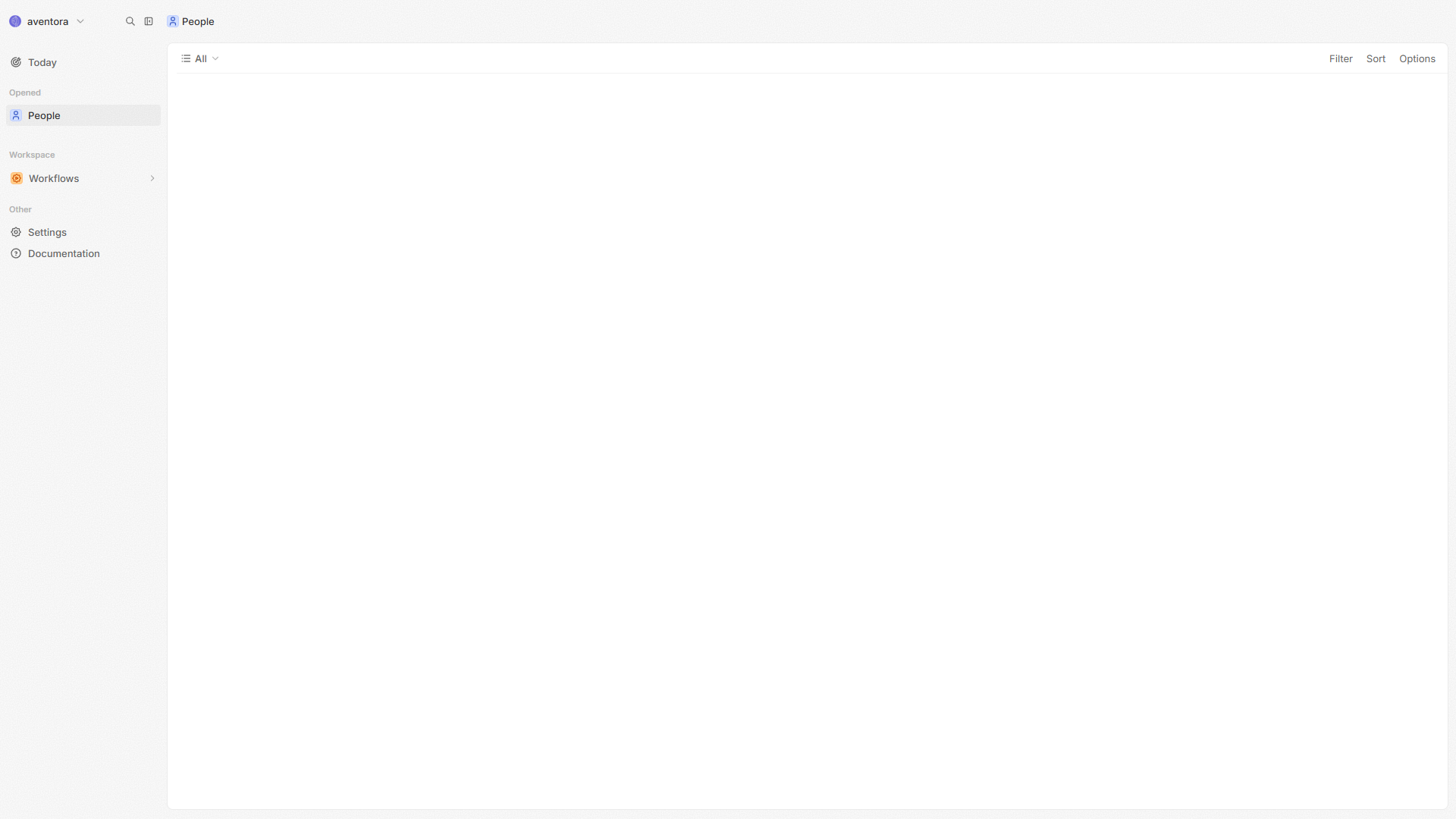
- Open People from the navigation.
- Search by name or email, or create a new person with at least a name and email.
- If you know their employer, link an existing Company or create one.
Tip: Keep one person per email where possible so engagements and timeline stay in one place.
2.3 Work the pipeline
Type: Operation | Audience: CRM workspace member
Overview: The pipeline is how managers see what will close this month and where deals are stuck. Updating stages after real conversations keeps reports honest and helps the team focus on deals that need action.
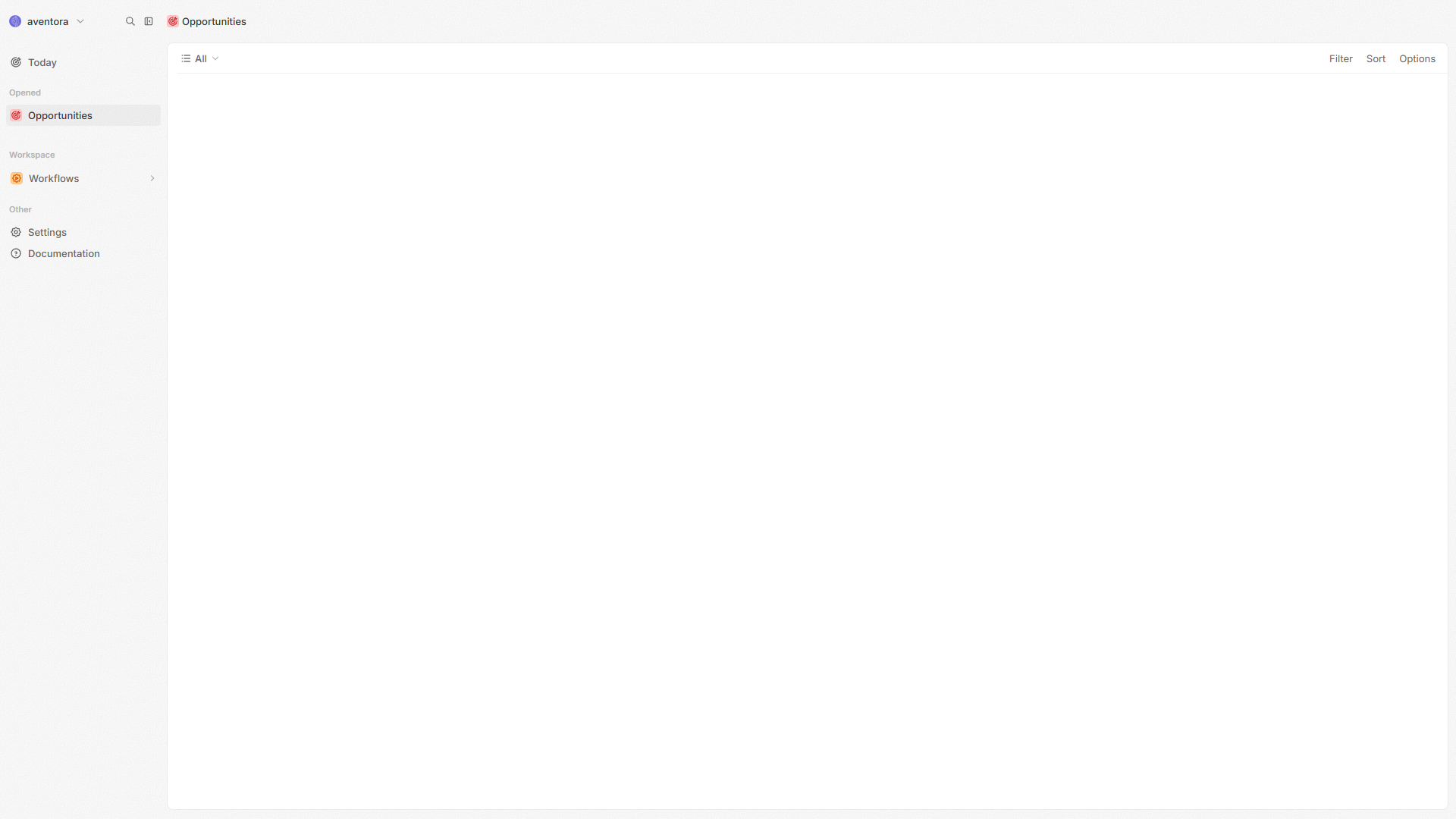
- When there is real opportunity, create an Opportunity and link the person and company.
- Choose the pipeline and stage (for example: New → Qualified → Proposal → Won / Lost).
- Use board or table views to see deals by stage.
- As conversations progress, move the stage. When finished, mark Won or Lost.
2.4 Tasks, notes, and timeline
Type: Operation | Audience: CRM workspace member
Overview: Tasks drive follow-through; notes capture judgment calls that do not fit a form field. The timeline plus synced email and calendar gives a single story of the relationship so a covering colleague can step in without starting over.
- Add a task for a future follow-up with a due date.
- Add a note after a call or meeting so the team sees what was said.
- The timeline on a record shows synced email and calendar activity when your account is connected under Settings → Accounts.
If you do not see email on the timeline, connect your mailbox (see §2.9) or ask a workspace admin to grant Connected accounts permission.
2.5 Engage by Aventora (from a contact)
Type: Operation | Audience: CRM workspace member
Overview: Starting outreach from the contact record means the call or message is tied to the right person in CRM—no retyping numbers from a spreadsheet. Templates speed up common touches (thank-you, reminder, meeting request) while keeping a consistent tone.
On a Person record, find the Engage by Aventora section (when your workspace has the integration enabled).

Before you start
Your user profile needs an engagement initiator phone number. If it is missing, the app shows a notice with a link to add it in your profile settings.
Start an engagement
- Choose Start new engagement (or use the command menu action on the person).
- Pick a template, for example:
- Thank you — after meeting / for your business
- Happy Birthday / Happy Anniversary
- Reminder — upcoming meeting
- Request a meeting
- Confirm upcoming meeting
- Ask to chat / Follow-up check-in
- Custom message (you choose type and write the instruction)
- Confirm Channel: Phone, SMS, or Email (email is available for informational messages).
- Select the contact’s phone or email from the record.
- If Channel is Email (optional but recommended for branded mail):
- Email layout (Engagement Hub) — pick a layout created in Admin → Account Settings → Email, or leave No layout template to send from the instruction only.
- Email subject — appears when a layout is selected; fills
{{SUBJECT}}in the Hub template. - Template fields — any custom placeholders in that layout (for example policy number, renewal date). The person’s name is used for
{{CUSTOMER_NAME}}when the record has a name.
- Review the instruction text (CRM quick templates fill this in; you can edit). Unwrapped text is notes; wrap the whole SMS in
[...]to send it as written. Use{name}for the contact’s first name. The instruction is always sent to Hub; the layout controls HTML formatting when you select one. - Start (or Schedule).
Two kinds of templates
| In CRM dialog | Where it is managed | What it does |
|---|---|---|
| Quick template (thank-you, birthday, …) | Built into CRM | Builds the instruction brief |
| Email layout | Aventora Admin → Account Settings → Email | Branded HTML subject/body, logo, header/footer |
Your Hub account owner must configure SMTP and email layouts in Admin before the layout dropdown lists templates. See §3.11.1.
After sending
- Active engagements appear in the same section with status.
- You can pause or cancel an active engagement when the product shows those actions.
- Expand an engagement to see history and transcript-style messages when available.
Engagements started here use the same Engagement Hub engine as calls placed in Admin; outcomes can sync back to CRM when CRM Sync is enabled.
2.6 Sales Cockpit
Type: Operation | Audience: CRM workspace member
Overview: Sales Cockpit is the daily command center for follow-up. Instead of opening every contact to decide who matters, users see prioritized leads, recent engagement signals, and suggested next actions in one place. It helps teams respond faster to buying intent, missed calls, no-shows, stale opportunities, and follow-up gaps.
Path: Aventora CRM → Cockpit
What the cockpit is
Sales Cockpit reads sales activity signals connected to People records and turns them into a work queue. Signals may come from Aventora engagements, synced Hub activity, calendar outcomes, website/chat behavior, or approved demo/automation seeding.
Examples of signals include:
- Missed call — a contact tried to reach you and should be called back.
- Pricing question asked — the contact showed buying intent.
- Appointment booked — the contact needs a confirmation or preparation touch.
- Appointment missed — the contact may need a rescheduling link.
- No reply — an outbound touch did not receive a response.
- Stale opportunity — the relationship has not moved recently.
- Website revisit / high engagement — the contact is showing renewed interest.
The cockpit converts those signals into:
- Lead Score — a 0–100 score based on positive and negative activity.
- Engagement Score — a 0–100 score focused on recent interaction volume.
- Temperature — typically Cold, Warm, or Hot.
- Urgency — Low, Medium, High, or Critical.
- Suggested Action — the next recommended step and why it is recommended.
What users can see
The Cockpit page is organized into panels:
| Panel | What it shows | How to use it |
|---|---|---|
| Priority Leads | Contacts ranked by urgency, score, and recent engagement. | Start here at the beginning of the day. Open the top contacts first. |
| Suggested Actions | Open recommendations such as Call Now, Escalate, Send Booking Link, or Send Follow-up. | Take, snooze, dismiss, or automate the recommendation. |
| Stale Leads | Contacts that have gone quiet or have stalled opportunities. | Re-engage or decide whether to move them to nurture. |
| Hot Leads | Contacts with high enough score or engagement to need faster attention. | Prioritize same-day outreach. |
| Recently Engaged | Contacts with the newest interaction activity. | Review what just happened and follow up while context is fresh. |
| Leads Requiring Follow-up | Suggested follow-up actions, often caused by no-reply or booked appointment signals. | Clear this list during daily follow-up blocks. |
| Team Activity | Recently completed, dismissed, or updated suggested actions. | Managers can see that the team is working the queue. |
| Automation Suggestions | Draft automation rules created from repeated action patterns. | Review before turning any rule into an active automation. |
Each lead card shows the contact name, lead score, engagement score, temperature, and the reason the contact surfaced. Selecting a lead opens the Person record.
Working a suggested action
Suggested action cards include the action label, reason, priority, preferred channel, and sometimes a drafted message.
Common actions include:
- Call Now — start a phone outreach for a missed call or urgent lead.
- Escalate — bring a pricing or high-intent lead to sales attention.
- Send Booking Link — help a contact reschedule a missed appointment.
- Send Follow-up — check in after no reply or after a booked meeting.
- Re-engage — restart a stale relationship.
Available buttons may include:
- Primary action (for example Call Now or Send Booking Link) — starts the recommended engagement through Aventora when the workspace is configured for it.
- Snooze — temporarily hides the action and brings it back later.
- Dismiss — closes the recommendation when it is not relevant.
- Automate Similar — creates a draft automation rule for review; it does not auto-run until enabled by an admin/authorized user.
Sales tab on a contact
Open a Person record and select the Sales tab to see the same intelligence for one contact:
- Lead Score
- Engagement Score
- Temperature
- Urgency
- Intent
- Last Engaged
- Open suggested actions for that person
Use this tab when you want context before calling or messaging a specific contact.
Why the cockpit may be empty
Sales Cockpit does not populate from contacts alone. A contact must have one or more sales signals before it appears. If the page is empty:
- Confirm contacts exist in People.
- Confirm Aventora CRM is connected to Engagement Hub and CRM Sync where applicable.
- Generate or wait for activity such as inbound messages, missed calls, appointment booking/missed events, pricing questions, or outbound no-reply signals.
- Ask an administrator if the Sales Cockpit feature or demo signals have not been enabled for your workspace.
Best practice: Treat the cockpit as a queue of “what should I do next,” not as a replacement for the full contact record. Open the Person record for history, notes, opportunities, and final judgment before major decisions.
2.7 Views, favorites, and filters
Type: Operation | Audience: CRM workspace member
Overview: Views and favorites turn the CRM into a daily workbench—e.g. “my open deals,” “leads added this week”—so reps spend time acting, not hunting. Workspace menu items set by admins spread the same shortcuts across the team.
- Views save filters (for example: open deals this month, new people this week).
- Favorites pin records or views in the navigation.
- Workspace admins can add objects to the workspace menu so everyone sees the same shortcuts.
If your role includes access, you may also use Workflows (automation for repetitive steps) and Dashboards (charts for managers) from the navigation.
2.8 Import and export
Type: Operation | Audience: CRM workspace member (if permitted)
Overview: Imports bootstrap the CRM from legacy lists or event signups; exports support reporting outside the app or backups. Both are gated by role so data does not leave the organization without control.
If your role allows it, use Import or Export on list views to move contacts or deals from spreadsheets. Ask your workspace admin if you do not see these actions.
2.9 Connect your email and calendar
Type: Operation | Audience: CRM workspace member
Overview: Connecting your mailbox and calendar reduces manual logging—meetings and emails show on the timeline automatically, which improves compliance and coaching (“did we actually follow up?”).
- Open Settings → Accounts.
- Connect Google, Microsoft, or manual email/calendar as offered.
- Choose which mailboxes and calendars to sync.
Synced messages and meetings can appear on timelines. Link them to the right people and deals when prompted.
2.10 Administration in CRM
Overview (business use case): CRM administration is about who can see and change customer data, and whether outreach from CRM is allowed at all. These settings are touched rarely but determine whether the rest of the team can work effectively.
Invite team and assign roles
Type: Administration | Audience: CRM workspace admin
Overview: New hires need workspace access; roles prevent junior staff from changing pipelines or exporting the full database while still letting them work deals.
- Settings → Members — invite colleagues by email.
- Settings → Roles — control who can change workspace settings, data model, import/export, workflows, and connected accounts.
Built-in roles are typically Admin and Member; your organization may use custom roles.
Enable Aventora Phone and Calendar
Type: Administration | Audience: CRM workspace admin
Overview: Without the Aventora app enabled, sales cannot launch engagements from contact records—the CRM stays a passive database. Enabling it connects daily selling to Engagement Hub.
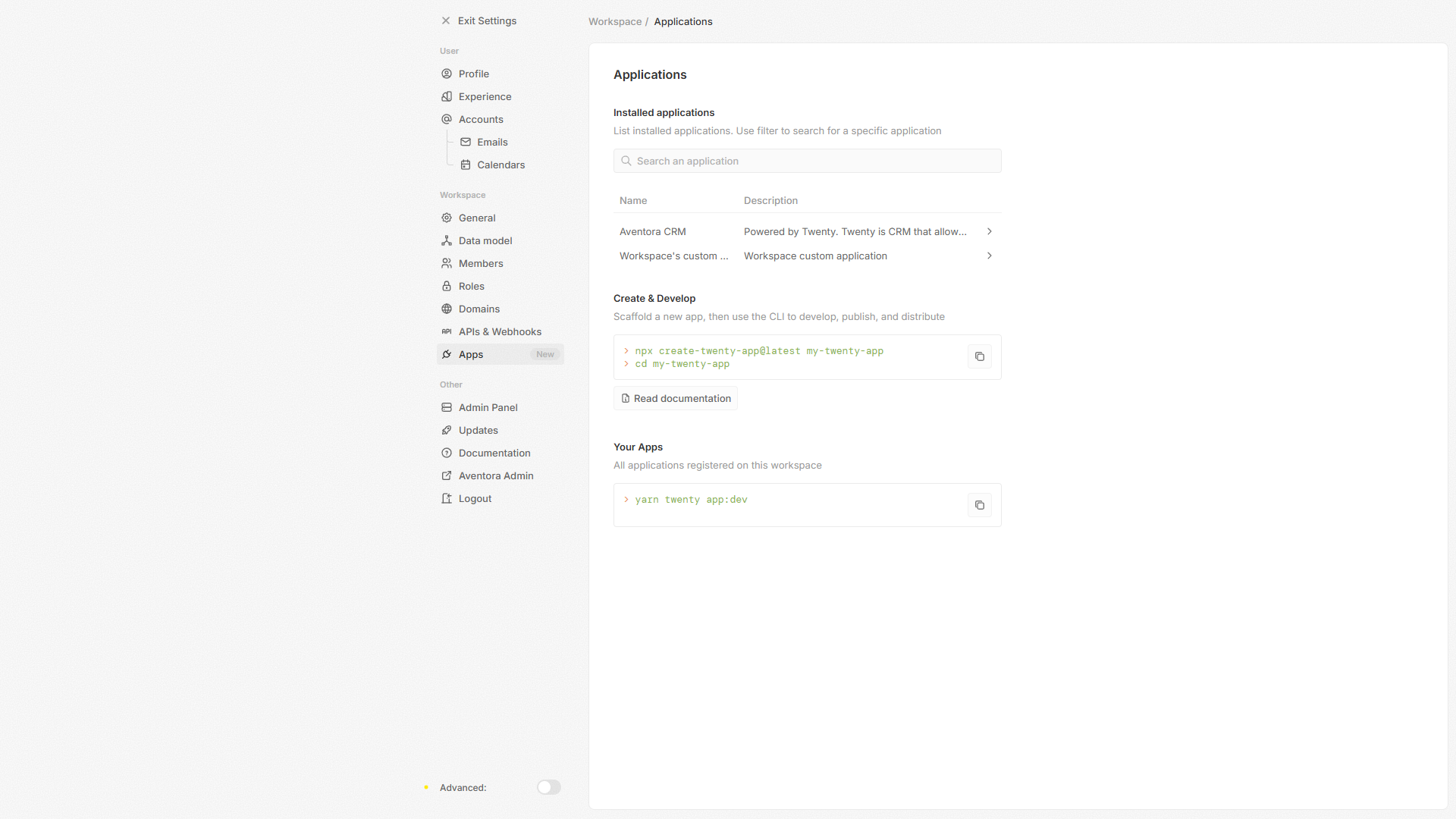
- Settings → Apps — open the Aventora application.
- Complete the connection to Engagement Hub (your implementer usually does this during onboarding).
- Use Aventora Calendar to enable team scheduling when your workspace has a subdomain configured.
Without this step, users will not see Engage by Aventora on contact records.
Data model and security
Type: Administration | Audience: CRM workspace admin
Overview: Custom fields capture industry-specific data (policy number, property ID, etc.). Domains and security settings protect who can log in and from which email addresses.
- Data model — add custom fields or objects if your process needs them.
- Domains — workspace email and access domains.
- Security — advanced options when your plan includes them.
Part 3 — Engagement Hub in Aventora Admin
Prerequisite: You sign in to Aventora Admin with an administrator account, and your account has the phone assistant service enabled. Navigation may differ slightly if your organization uses a simplified Hub layout (see §3.13).
First-time setup: New Hub admins are guided through a one-time onboarding wizard on first login — Engagement Hub Onboarding Guide. Real estate trial teams: Real Estate Trial Guide.
Quick start for day-to-day Hub use: Engagement Hub Quick Guide (account/calendar, Call Settings, Single/Bulk Call, Analysis, Notifications).
Overview (business use case): Engagement Hub is how the business reaches customers at scale—confirmations, reminders, lead follow-up, and inbound handling—without every touch being a manual dial. It is built for operations that care about outcomes (connected, booked, opted out) and credit usage, not just sending messages.
3.1 Hub dashboard
Type: Operation | Audience: Admin user (Engagement Hub)
Overview: Managers and coordinators use the dashboard as a control tower: are campaigns running, are credits sufficient, are calls failing? Quick visibility here prevents surprise outages mid-campaign.
Path: Engagement Hub → Dashboard
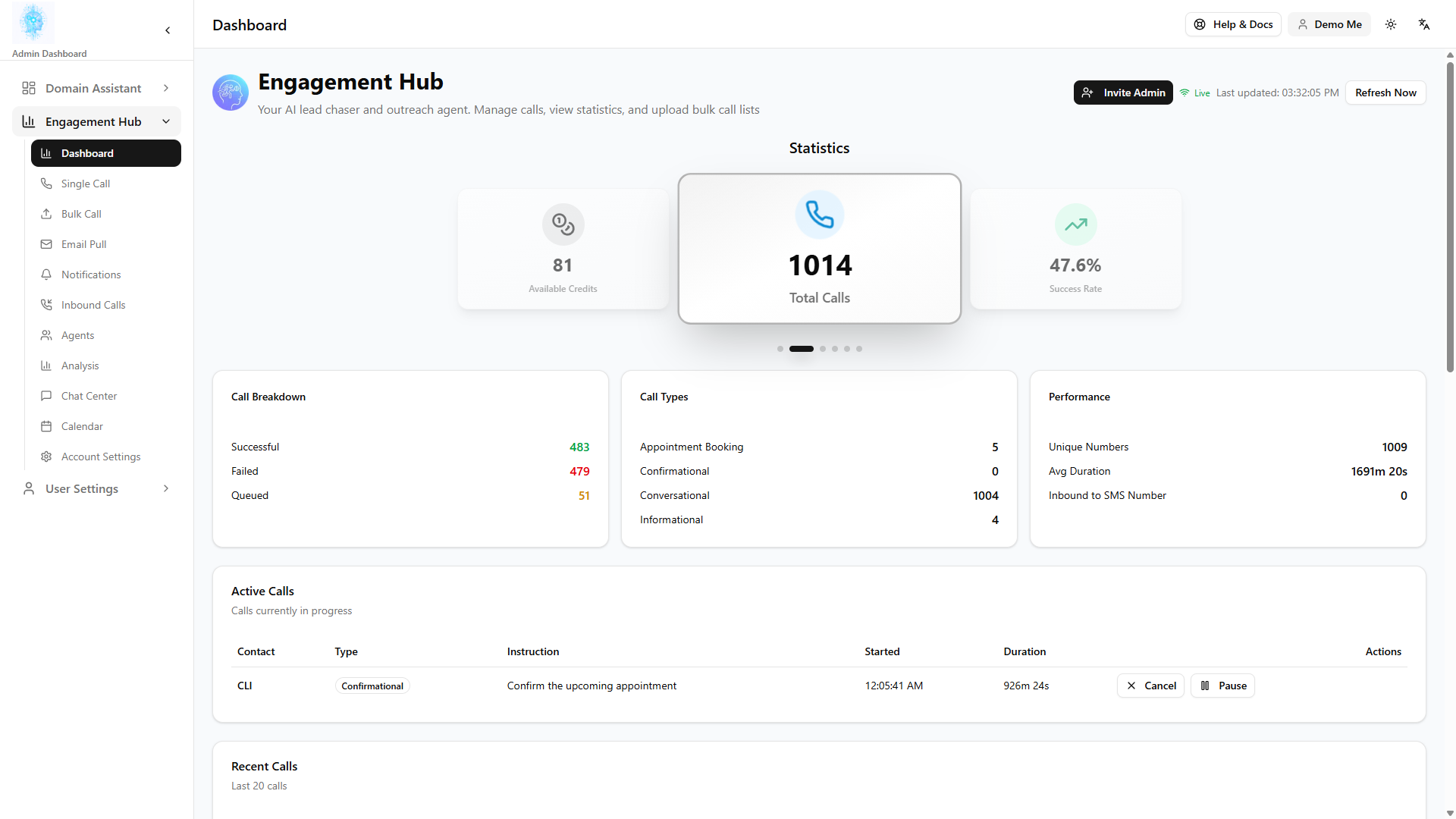
Use this page to see activity at a glance:
- Total calls and messages
- Success rate and active or queued activity
- Credits remaining
- Recent outcomes
The dashboard updates in near real time when live activity is connected.
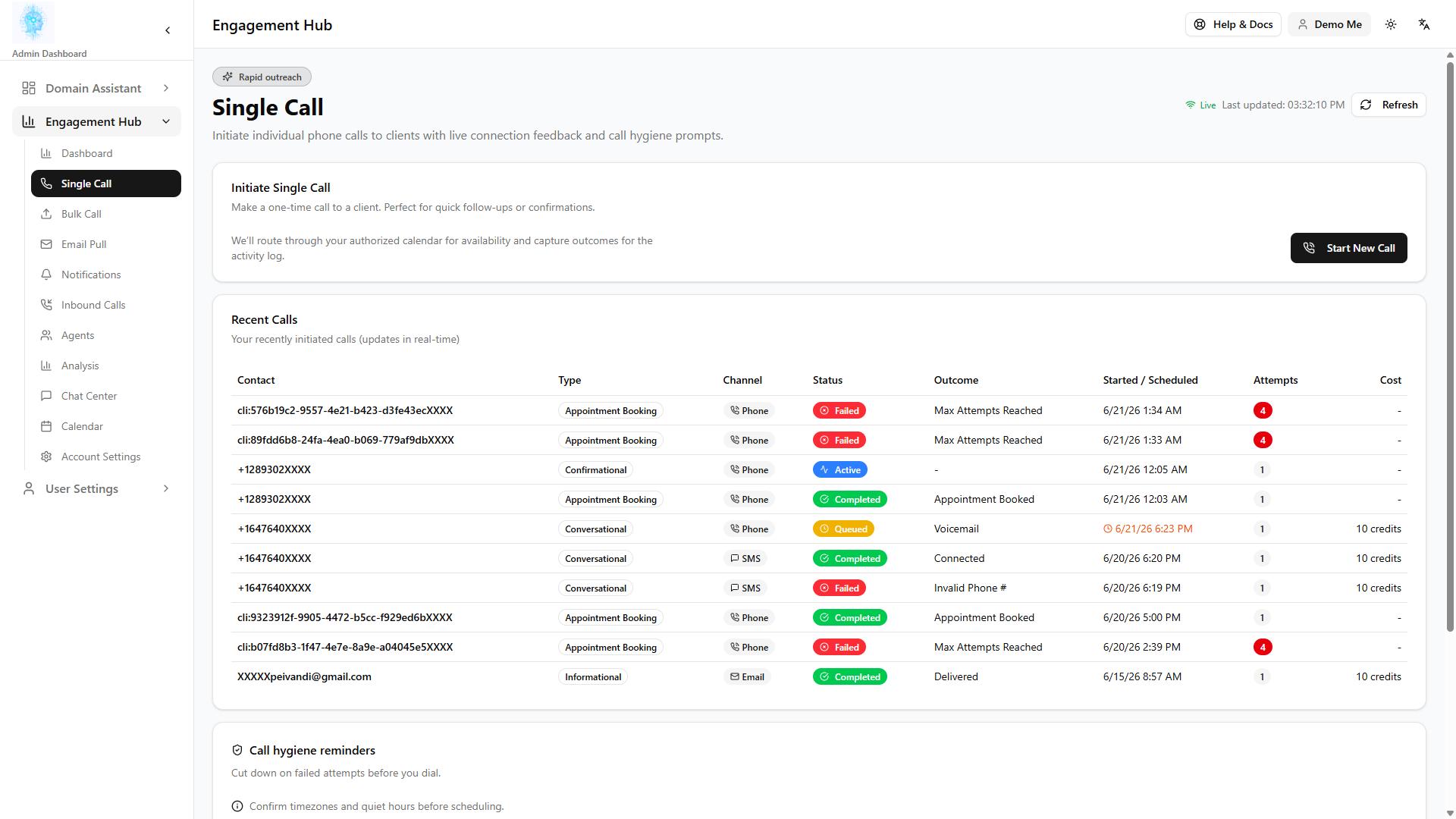
3.2 Single Call
Type: Operation | Audience: Admin user (Engagement Hub)
Overview: Single Call is for high-touch or urgent one-offs—a VIP callback, a test before a bulk run, or a single appointment confirmation when a batch is not worth setting up.
Path: Engagement Hub → Single Call
Place one outreach to a single person:
- Enter phone number, name, and email.
- Choose call type (for example appointment booking, confirmation, informational, conversational).
- Choose channel: phone, SMS, or WhatsApp variants if enabled for your account.
- Add instructions the assistant should follow. For informational phone, the opening greets the customer and delivers that message immediately on Deepgram Voice Agent and Pipecat (it does not wait for them to ask).
- Start the call or message and monitor status on the dashboard.
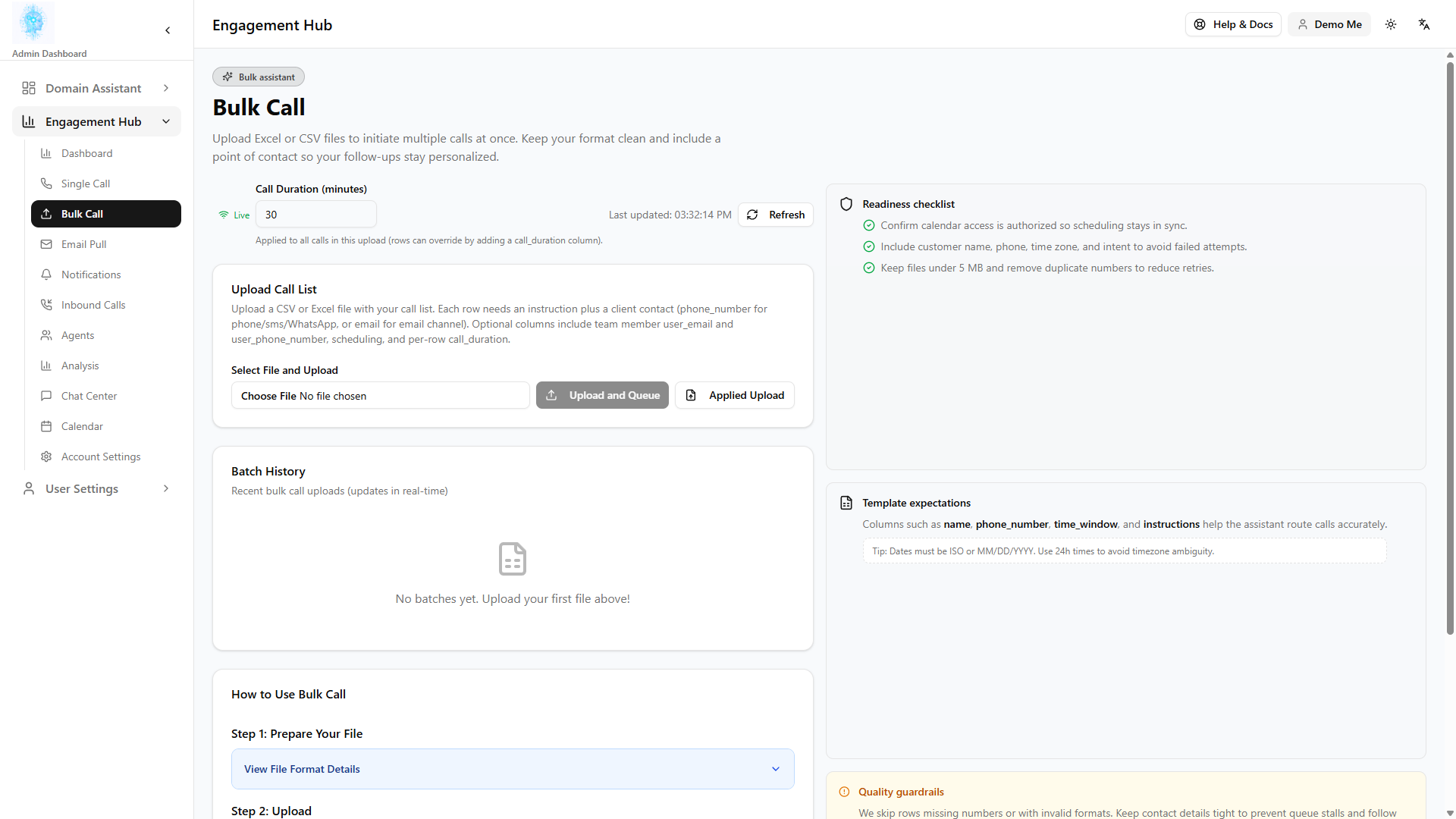
3.3 Bulk Call
Type: Operation | Audience: Admin user (Engagement Hub)
Overview: Bulk Call is how teams run list-based campaigns—appointment reminders for tomorrow’s schedule, payment notices, or re-engagement of dormant leads. One upload reaches hundreds or thousands with consistent messaging.
Path: Engagement Hub → Bulk Call
Upload a spreadsheet (CSV) to run a campaign — many contacts with the same type of outreach. Check credits before large uploads.
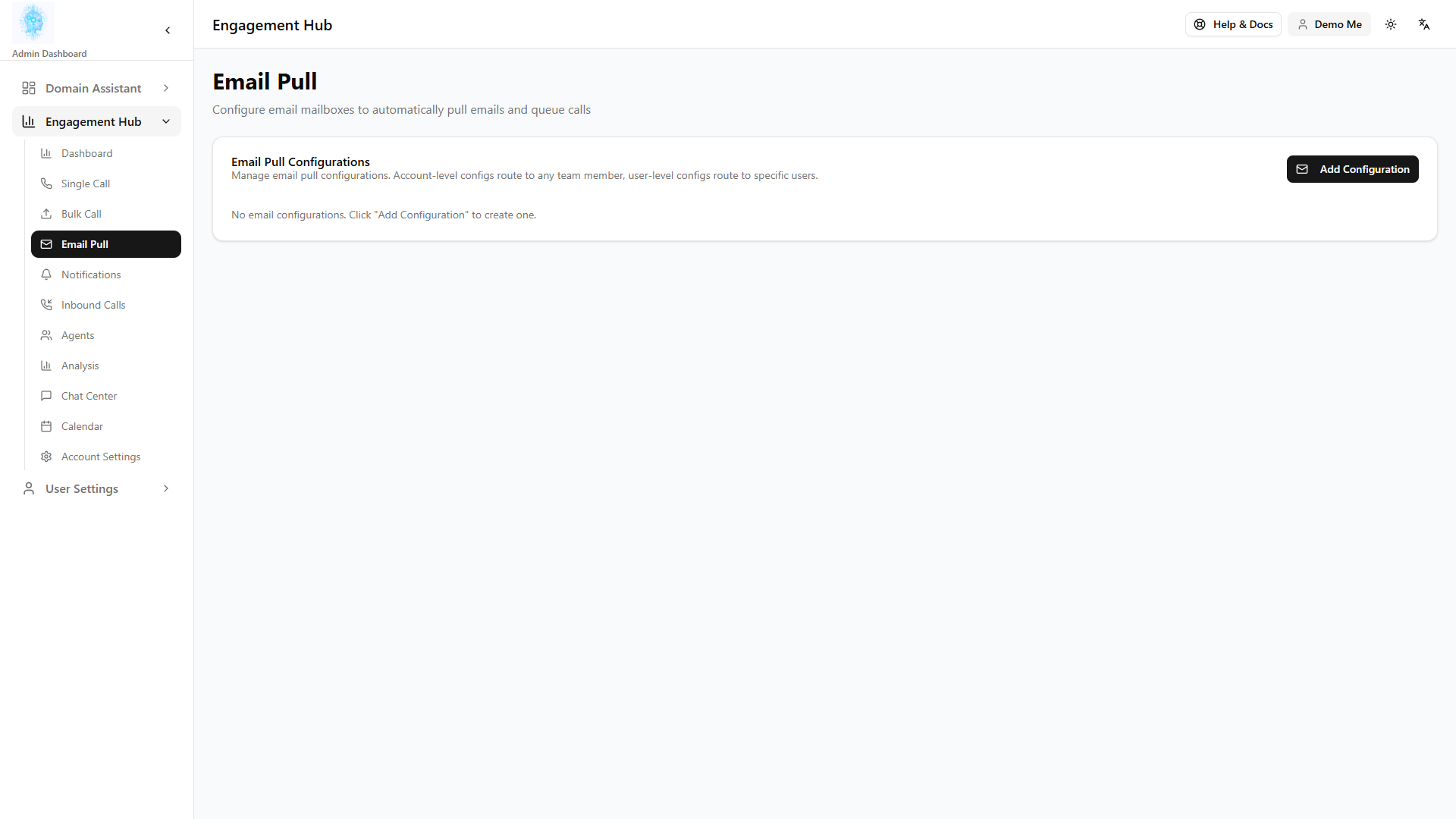
3.4 Email Pull
Type: Operation | Audience: Admin user (Engagement Hub)
Overview: Email Pull turns inbound lead email into action automatically—e.g. a web form notification arrives and Hub starts the right call or SMS without someone copying data by hand. It shortens speed-to-lead.
Path: Engagement Hub → Email Pull
When enabled, the system watches configured inboxes and can start outreach automatically from incoming mail (for example new lead notifications). Configure rules on this page per your account setup.
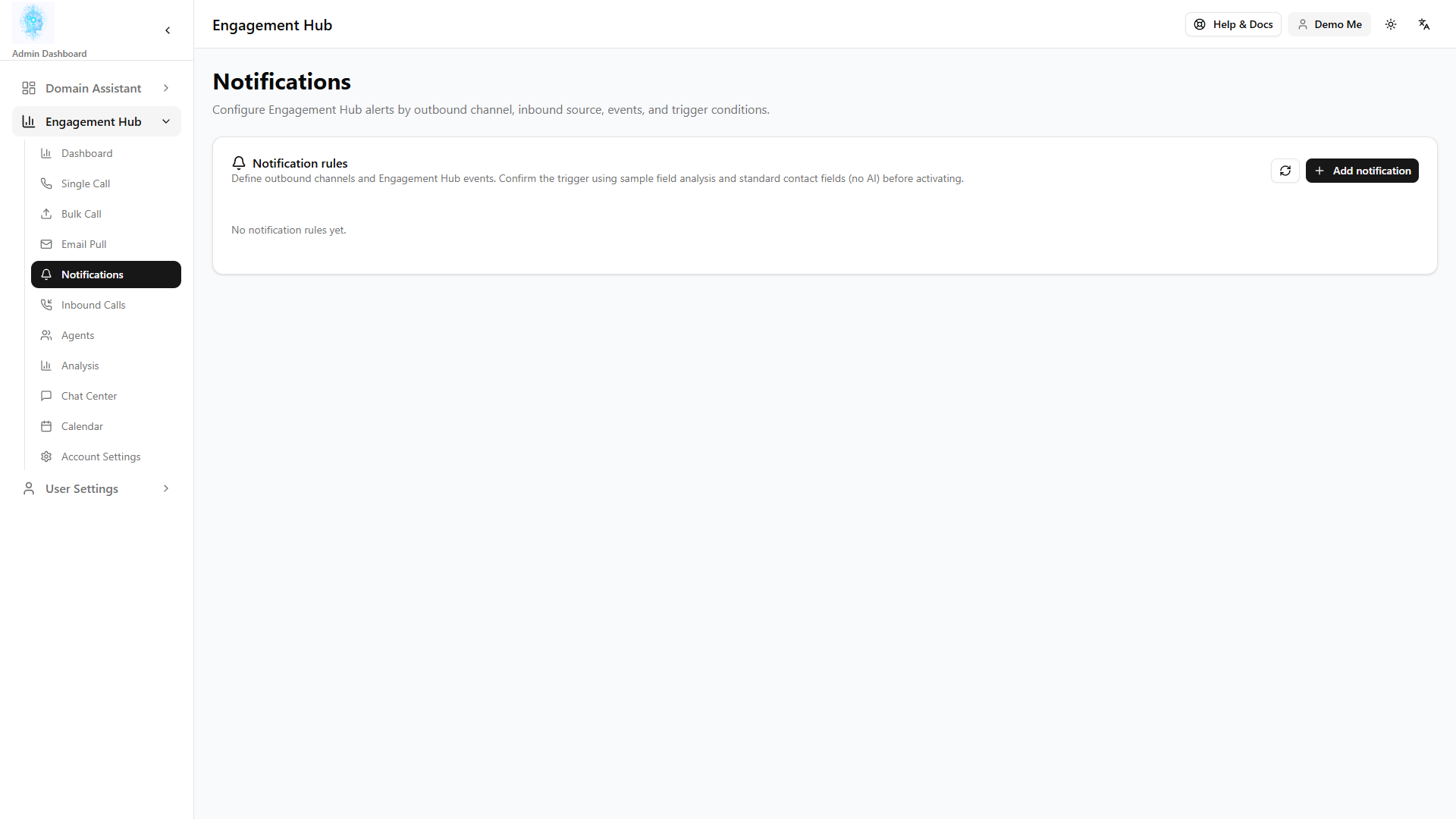
3.5 Notifications
Type: Operation | Audience: Admin user (Engagement Hub)
Overview: Notifications keep the right people aware when something needs human attention—failures, queue buildup, or thresholds—without watching the dashboard all day.
Path: Engagement Hub → Notifications
Set how and when your team receives alerts about Hub activity. Options depend on what your account owner has enabled.
For round-robin SMS or email destinations (multiple recipients on one rule):
- SMS: Recipients can reply
PAUSEto leave the rotation andRESUMEto return. Do not use carrierSTOPfor temporary pause—that is a permanent unsubscribe. - Email: An out-of-office auto-reply or bounce/undeliverable for a notification email pauses that address (typically for 7 days) and resends that same notification to the next active round-robin recipient. Failed SMS delivery does the same. Admins can Resume a paused recipient on the Notifications page.
- The page lists Paused round-robin recipients so supervisors can see who is out and restore them immediately.
OOO detection reads replies in the same channel that sent the notification: Google/Microsoft linked inbox, or (when Email settings use System) the platform SysInbound mailbox that receives replies to system outbound email.
3.6 Inbound Calls (activity list)
Type: Operation | Audience: Admin user (Engagement Hub)
Overview: This list is the audit trail for customers who called you: what they wanted (message, callback, appointment) and what was sent to staff. Supervisors use it for quality review and dispute resolution.
Path: Engagement Hub → Inbound Calls
This page lists inbound calls to your Hub number: what the caller asked for (message, callback, appointment) and related secure-link information sent to your team.
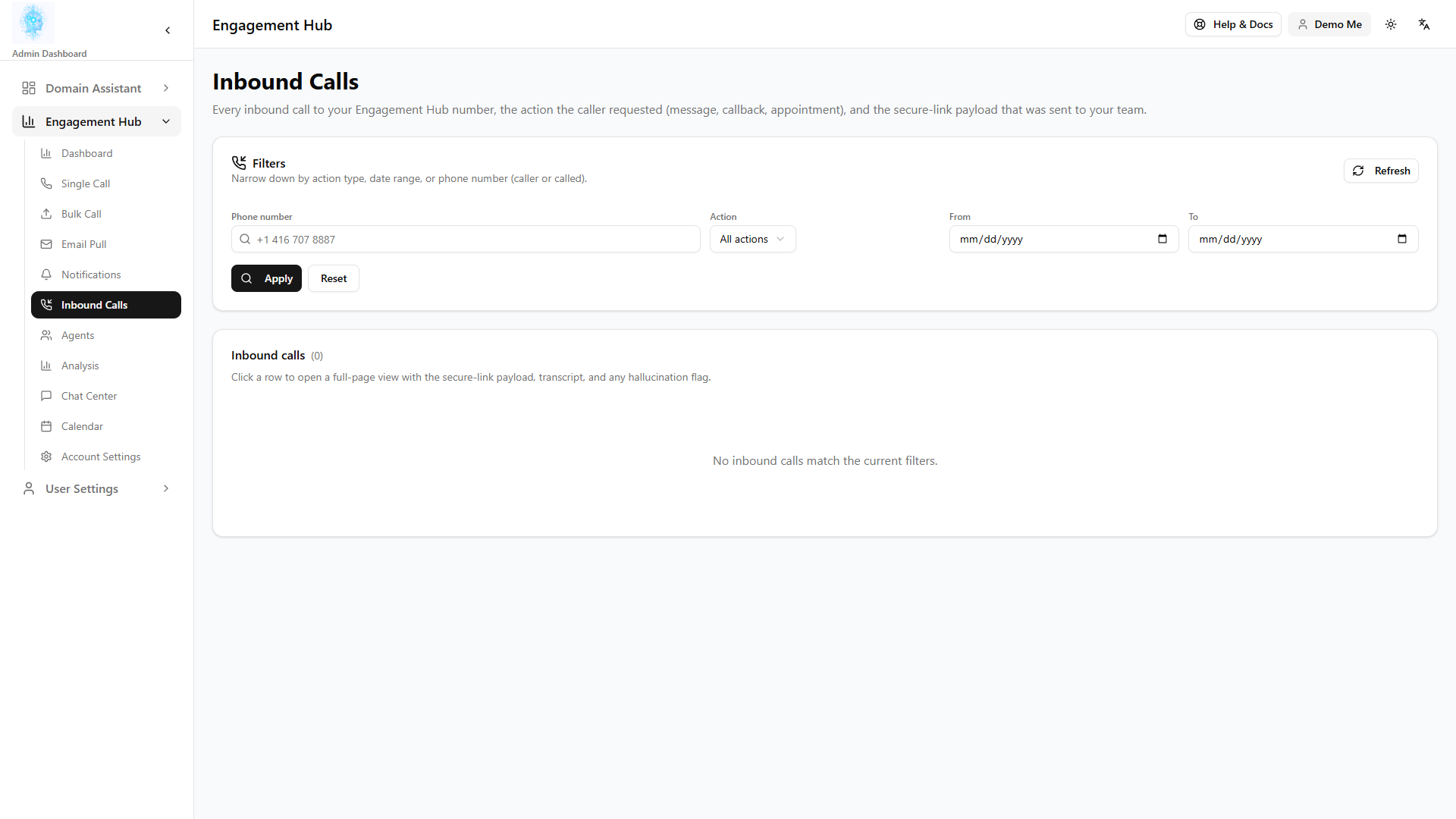
Note: Configuring inbound behavior (numbers, greetings, per-user routing) is under Account Settings → Inbound, not on this list page.
3.7 Chat Center
Type: Operation | Audience: Admin user (Engagement Hub)
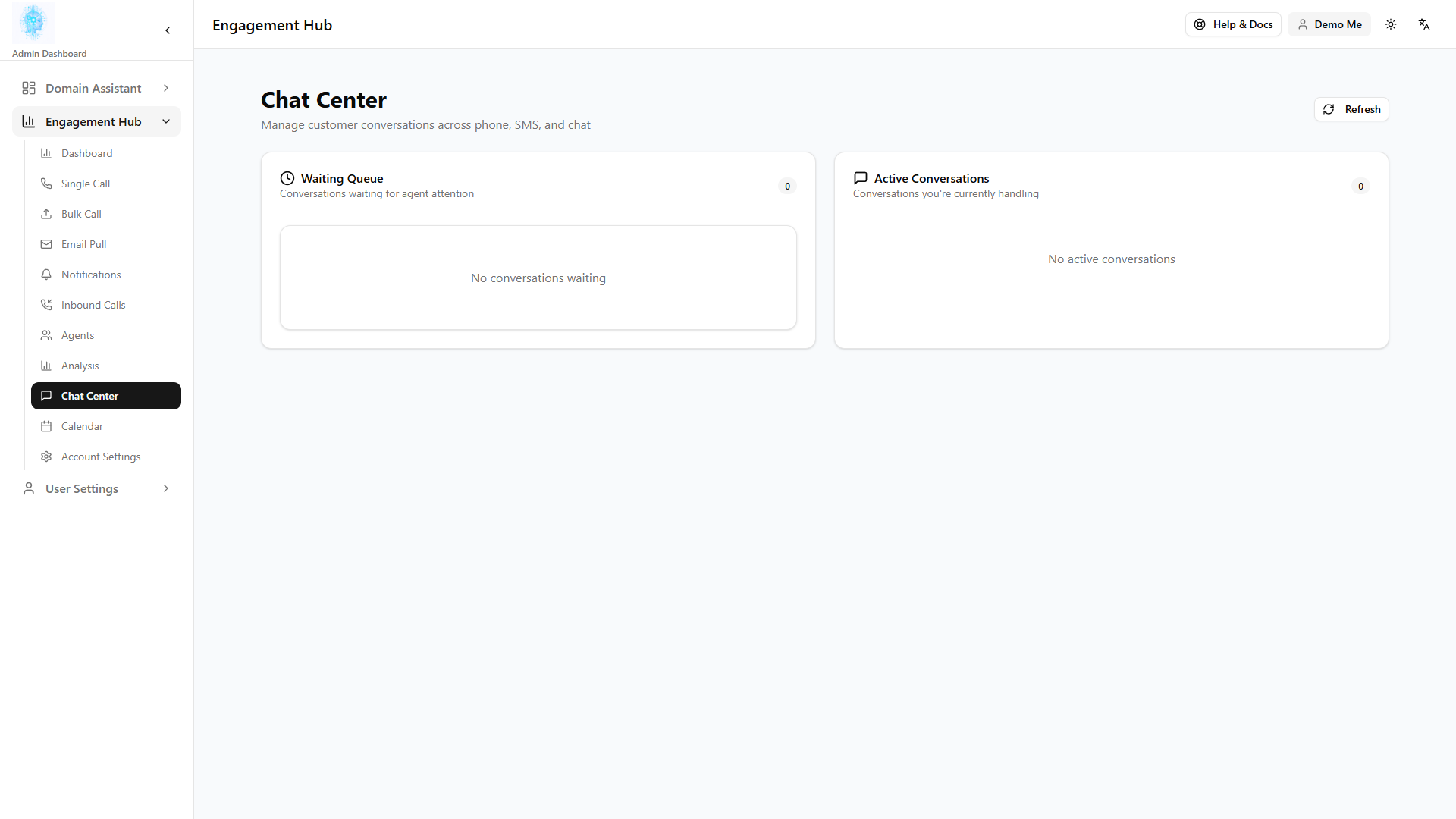
Overview: When SMS or chat conversations need a human, Chat Center is the queue—like a lightweight contact center. Staff claim the next conversation so nothing sits unanswered and customers get a real reply.
Path: Engagement Hub → Chat Center
When customers reply by SMS or chat channels that queue for staff:
- Open Chat Center.
- Review the waiting queue (badge on the menu may show count).
- Claim a conversation to handle it.
- Reply in the conversation detail panel.
- When finished, move on; the queue refreshes automatically.
If your menu does not include Chat Center, your organization may use a simplified Hub layout (§3.13).
3.8 Analysis
Type: Operation | Audience: Admin user (Engagement Hub)
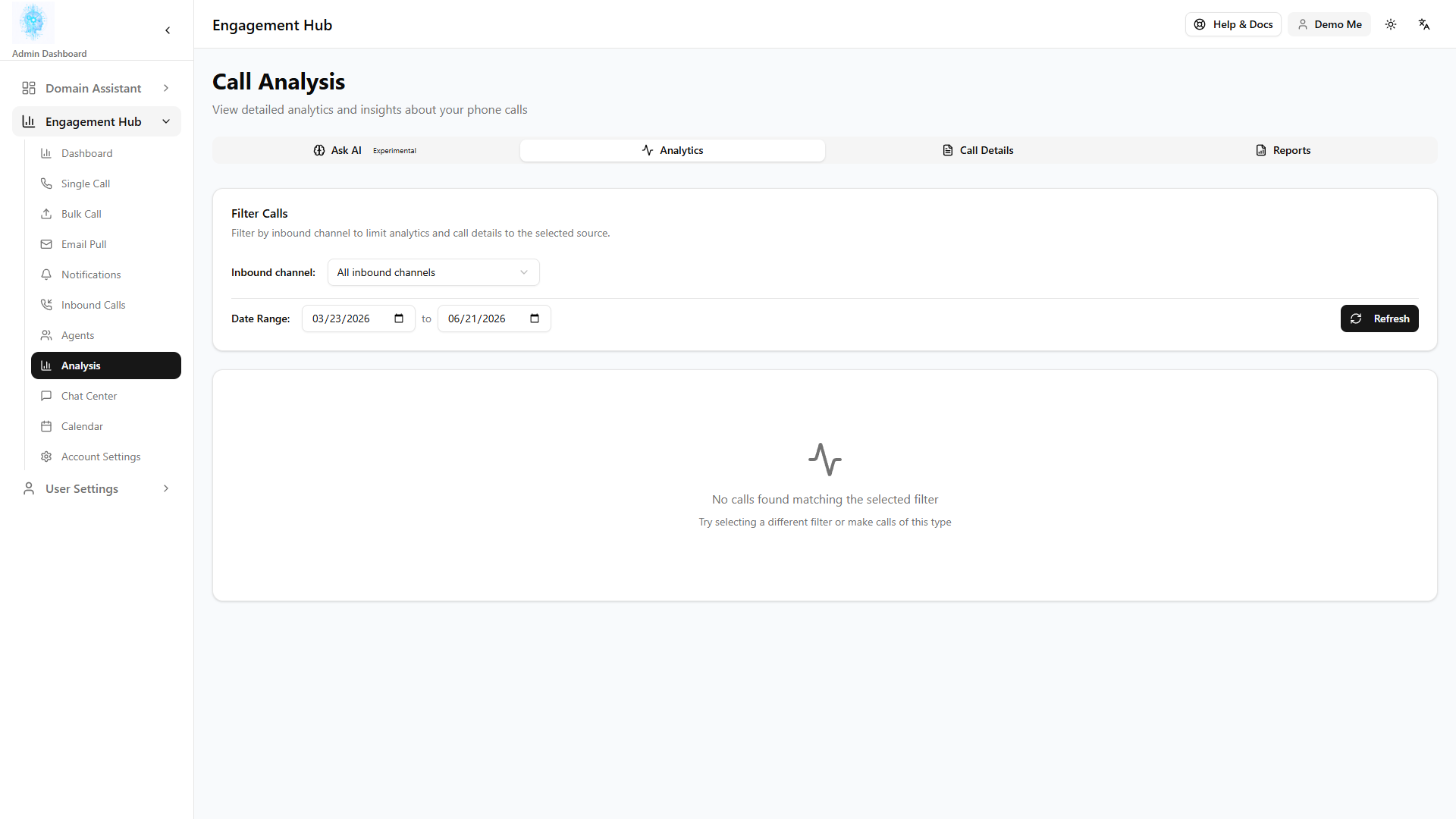
Overview: Analysis supports continuous improvement: which campaigns connected, which failed, where to spend credits next month. Pair it with CRM pipeline reviews to tie outreach to revenue.
Path: Engagement Hub → Analysis
Review outcomes, trends, and reporting for outreach.
Agent SMS on Call Details
For conversational SMS engagements that are In Progress (waiting on the customer), open a row’s Conversation History dialog. When eligible, an Agent SMS panel lets you:
- Send message — delivers your SMS and auto-pauses the AI (no competing reminders or auto-replies)
- Take over — pause AI without sending (optional)
- Let AI continue — hand control back to the bot when you are done
Agent messages appear in the transcript as Admin. Operational Pause (defer ~1 hour) remains separate from agent handling.
Notifications report
Open Analysis → Reports, then the Notifications tab, to see how Engagement Hub alert rules (Teams, SMS, Phone, Email) were delivered, grouped by recipient or matched user. Each row can be joined to the engagement outcome on the triggering call (for example Connected or Timed out). Phone answer status and complete per-recipient logging apply from the logging cutover forward. Older email/SMS/phone fires estimate the recipient from the rule destination list in round-robin order. Load is cancellable and does not block the rest of Reports. Create and edit rules on Notifications, not in Reports.
3.9 Calendar
Type: Operation | Audience: Admin user (Engagement Hub)
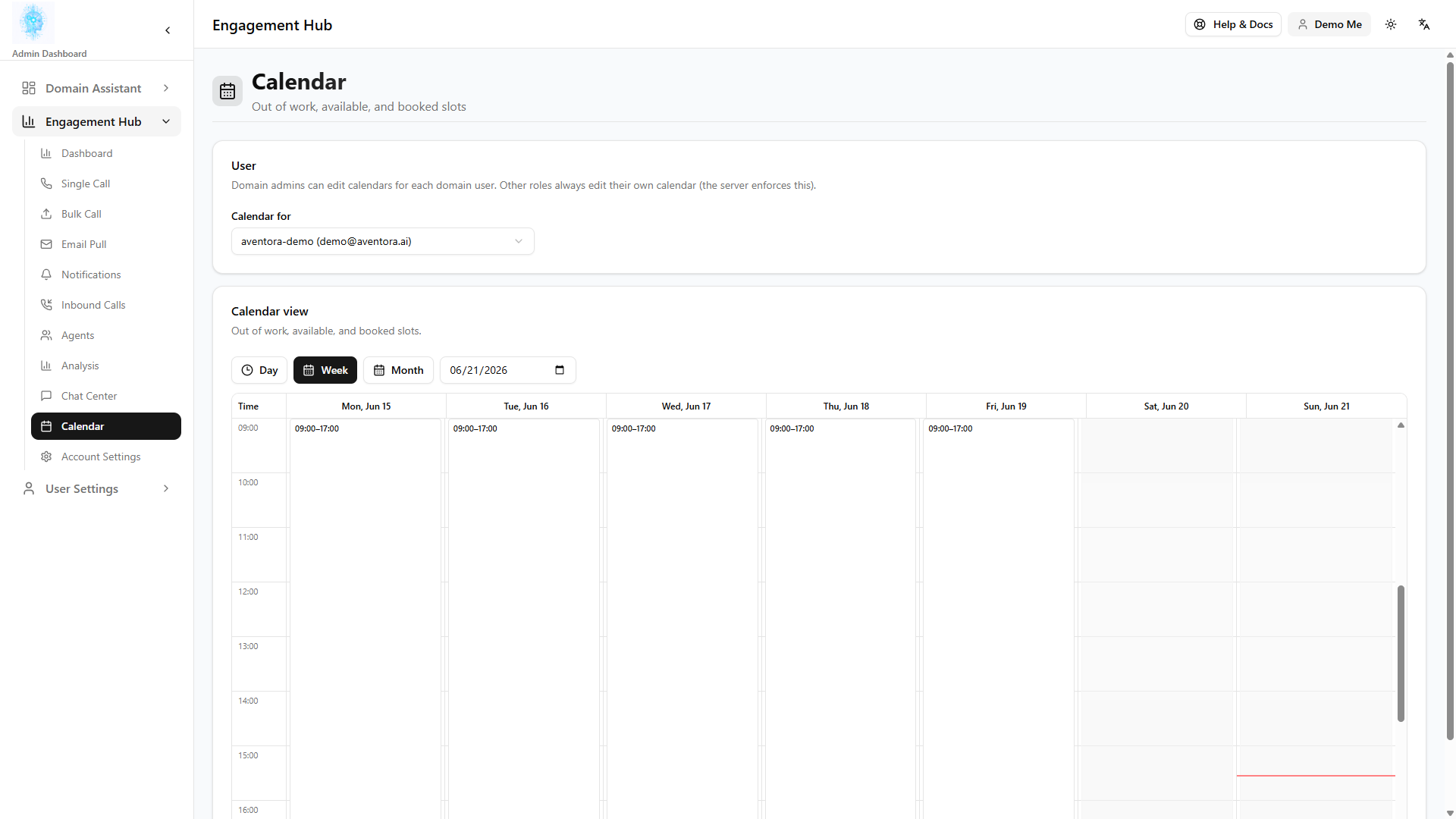
Overview: Calendar connection lets the assistant offer real appointment slots instead of vague “we’ll call you back.” That reduces no-shows and back-and-forth scheduling calls.
Path: Engagement Hub → Calendar
Connect Outlook or Google calendar for appointment booking flows. Set your availability so the assistant only offers times when you are free.
Delegate admins manage their own calendar connection here; account-wide calendar rules are under Account Settings for the owner.
3.10 Agents
Type: Administration | Audience: Engagement Hub account owner, Admin user (if visible)
Overview: Agents extend Hub into email workflows tied to CRM—useful when follow-up sequences should respect the same customer record sales sees. They appear only when Hub and Aventora CRM are formally linked.
Path: Engagement Hub → Agents
This menu item appears only when CRM Sync is set to Aventora CRM and connection details are saved in Account Settings.
Agents are email-based automations tied to CRM. If you do not see Agents, ask the account owner to complete CRM Sync setup.
3.11 Account Settings
Type: Administration | Audience: Engagement Hub account owner (full); delegate (limited)
Overview: Account Settings is where the organization defines how Hub behaves globally—retries, inbound numbers, CRM sync, channels, and qualifications. Getting this right once saves daily friction for every coordinator and rep.
Path: Engagement Hub → Account Settings
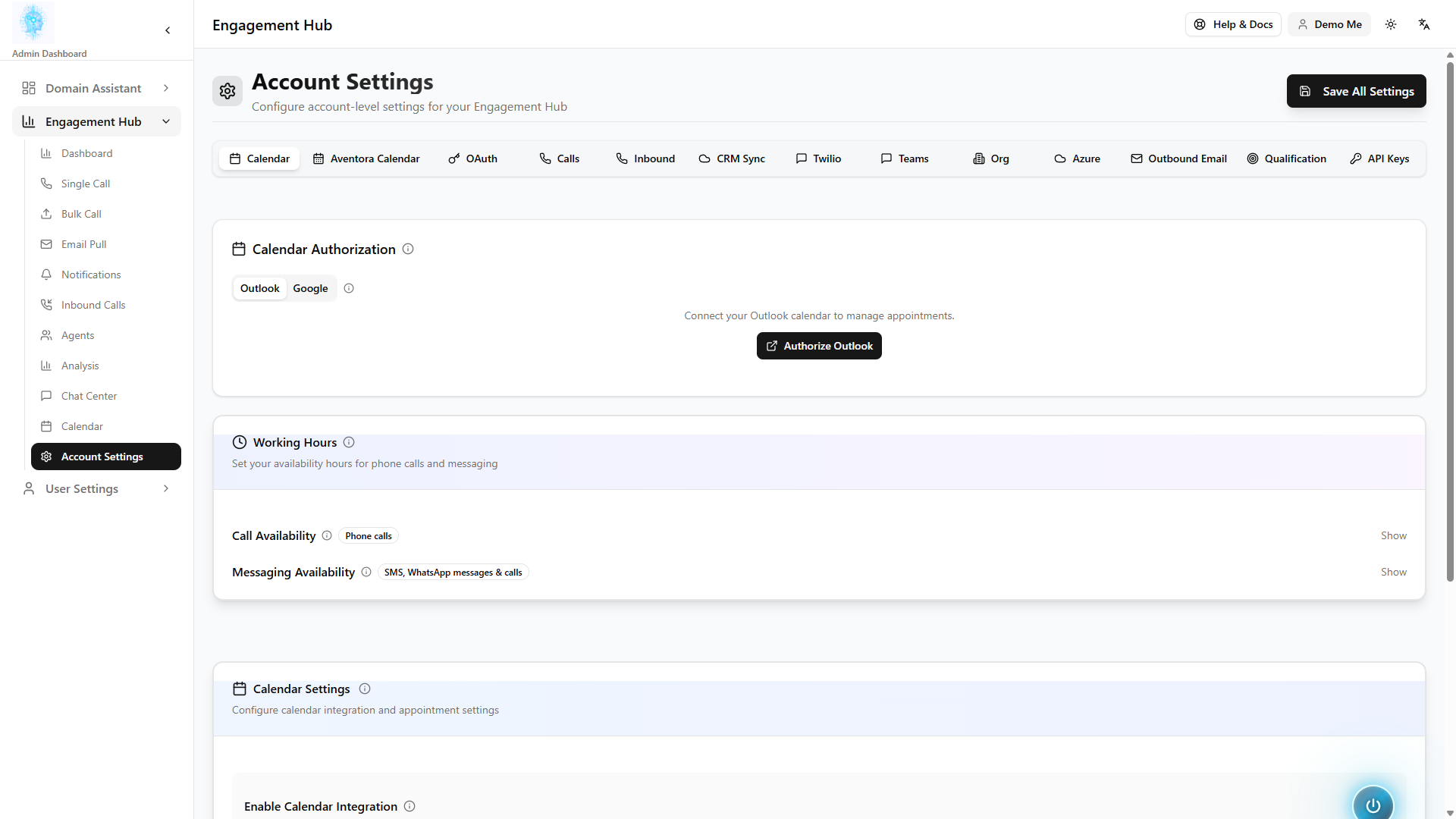
Account owner (full access)
Tabs available in the standard implementation:
| Tab | Business purpose |
|---|---|
| Calendar | When appointments may be booked and for how long |
| Aventora Calendar | Team-wide scheduling product tied to Hub |
| OAuth | Credentials for calendar providers (usually set at onboarding) |
| Calls | How aggressively to retry, how many calls at once, defaults |
| Inbound | Your main inbound number, routing, and caller options |
| CRM Sync | Keep Hub activity aligned with Aventora CRM records |
| Org | Business identity used in Hub operations |
| Azure / Twilio / Email / Teams | Voice, SMS, WhatsApp, and email delivery |
| Qualification | Rules to score or qualify leads when enabled |
| API Keys | Connections for approved automated systems (usually managed by your IT partner) |
3.11.1 Email settings
Type: Administration | Audience: Engagement Hub account owner, CRM users sending email
Overview: Use this tab to configure the account email mailbox (send and, for Google/Microsoft, receive). Informational emails (renewal reminders, thank-you notes) send as a first message. If the customer replies, Hub continues the conversation by email, the same way informational SMS becomes conversational.
Provider choice
- Google / Microsoft — linked mailbox used for both sending and receiving. Hub reads auto-replies from that same inbox for notification round-robin out-of-office pause, and polls it for engagement replies.
- System — Aventora platform SMTP (SES). When SysInbound IMAP is configured on the platform, Hub reads OOO auto-replies from that inbound mailbox (Reply-To on system sends). For System email, optionally set Engagement inbound mailbox (address + IMAP). If that is empty, Hub uses platform SES inbound receiving when it is configured, otherwise plus-addresses SysInbound. Customers must Reply (Reply-To); sending to the SES From address may never arrive.
What you configure in Admin
- Sender / mailbox — System, or a linked Google/Microsoft account. Legacy SMTP fields may still appear for some accounts.
- Engagement inbound mailbox (System only, account owner) — optional Reply-To IMAP inbox for System email, including informational. Address-only is not enough; Hub must be able to poll IMAP.
- Branding — optional HTML header and footer, domain logo and/or custom logo URL. Branding wraps every template; templates contain only the message body. Linked Google/Microsoft mailboxes embed the domain logo inline. System (Aventora platform) email keeps the organization name and skips a broken empty logo box. Replies sign off with your organization name.
- Email templates — create from the template library or from scratch. Each template has a name, subject pattern, and HTML body.
Built-in placeholders (filled automatically when a send runs):
| Placeholder | Typical source |
|---|---|
{{CUSTOMER_NAME}} | Contact name on the engagement |
{{ORGANIZATION_NAME}} | Your organization name in account settings |
{{SUBJECT}} | Subject line passed with the send, or one Hub writes from the engagement if you omit it |
Custom placeholders in templates
When you design a layout in Admin, you can add your own placeholders (for example {{POLICY_NUMBER}} or {{RENEWAL_DATE}}). In CRM, after you pick a layout, the Template fields section asks for those values before you send.
Starting email from CRM
On a Person record, open Engage by Aventora (see §2.5):
- Choose an informational quick template (or custom message).
- Set Channel to Email and select the person’s email.
- Optionally choose Email layout (Engagement Hub) and complete Email subject and Template fields. If you leave the subject blank, Hub writes one from the engagement instruction and type. Header and footer branding stay as configured.
- Start the engagement.
Layouts are created and edited in Admin → Account Settings → Email, not in CRM. CRM lists your organization’s layouts and collects the information needed to send them.
CRM Sync (Aventora CRM): Confirm provider is Aventora CRM, connection is active, and use sync report / resync if your administrator asks you to clear a backlog.
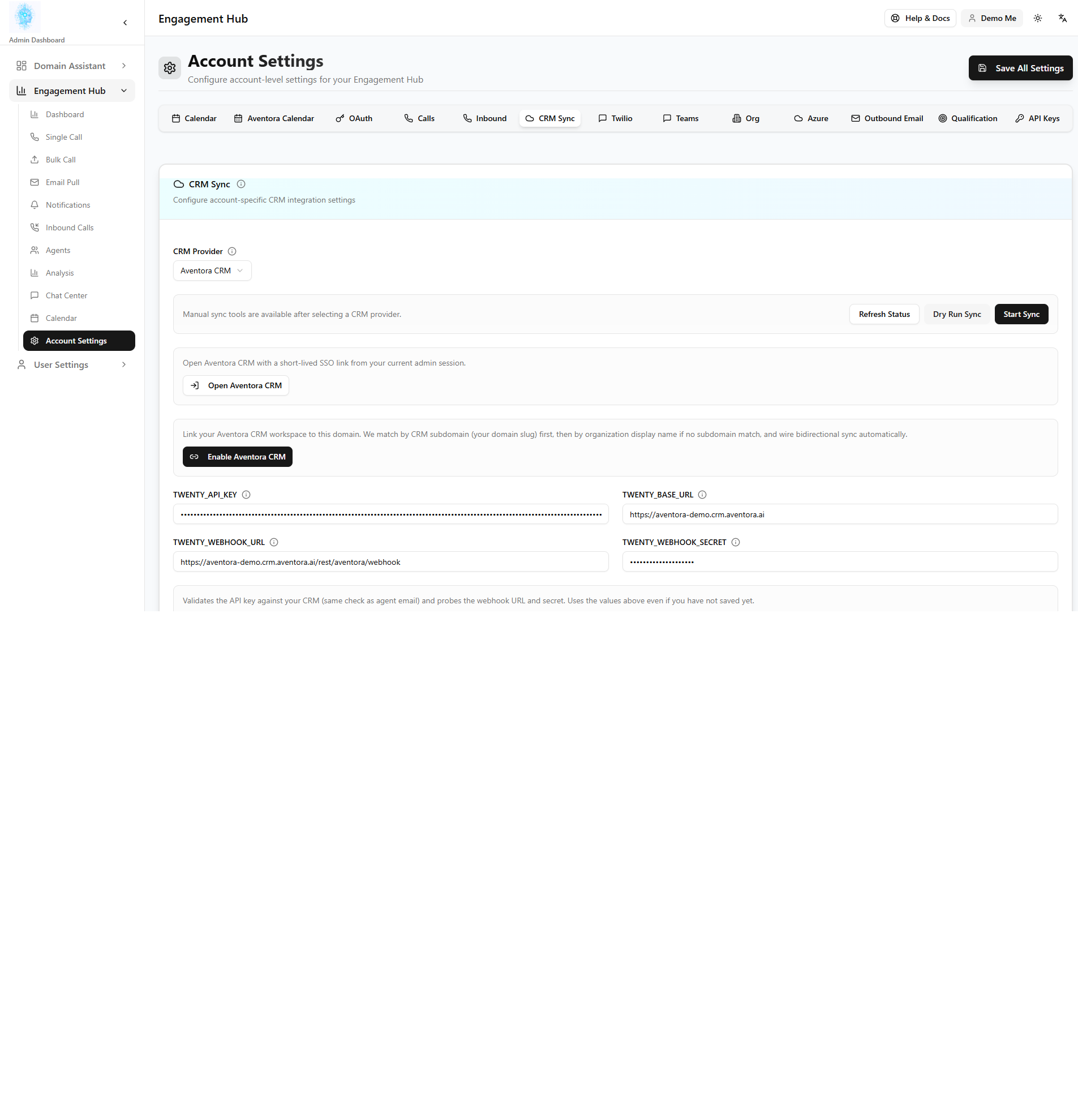
Delegate admin (limited access)
Overview: Delegates are trusted staff who need their own inbound line or calendar without changing billing, CRM keys, or org-wide telephony.
Delegates see Calendar, Aventora Calendar, and Inbound (mainly their own inbound row). They do not see Calls, Org, Azure, Outbound Email, Qualification, API Keys, and other owner-only tabs. They can use OAuth, CRM Sync, Twilio, and Teams for personal overrides where the product allows user-level settings.
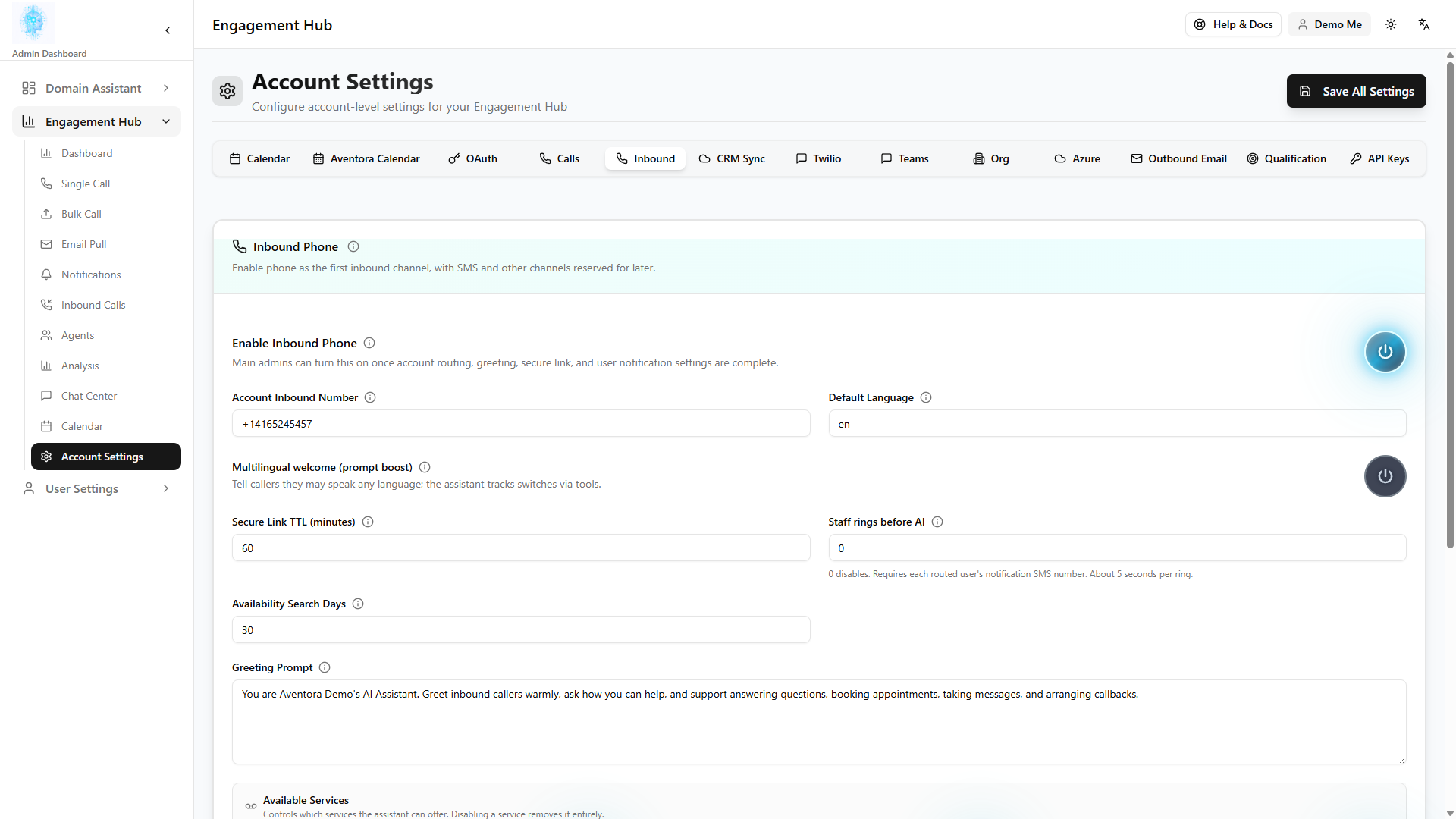
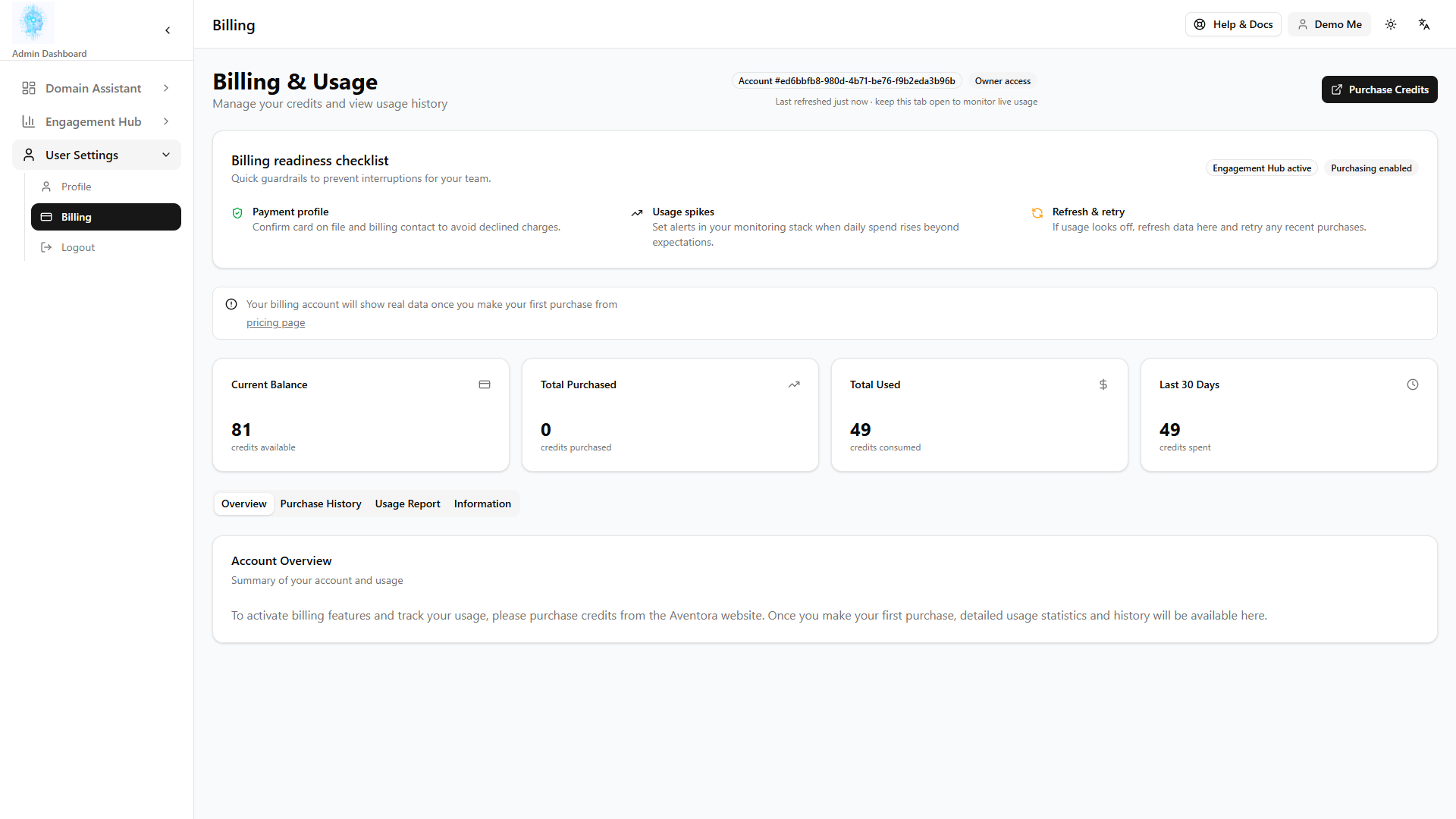
3.12 Billing and profile
Type: Operation / Administration | Audience: All admins / account owner
Overview: Credits are the consumable cost of outreach; billing shows spend and purchases so finance and operations can plan. Profile holds personal preferences separate from account rules.
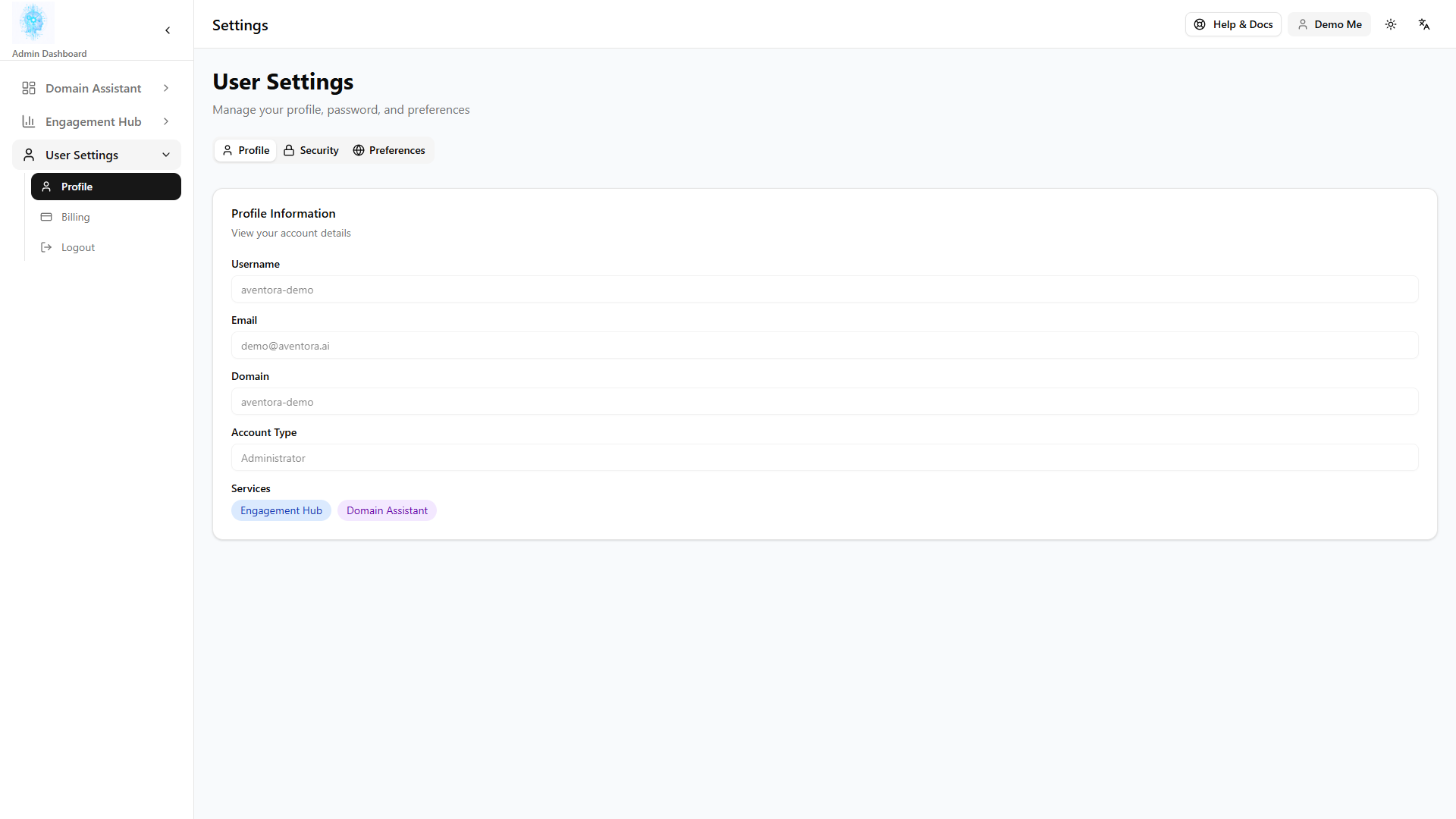
- User Settings → Profile — language and personal preferences.
- Billing — credits, usage, purchase history (typically account owner).
3.13 Simplified Hub layouts (optional)
Type: Operation | Audience: Admin user (Engagement Hub)
Overview: Some tenants receive a shorter menu on purpose—fewer features, less training burden—for teams that only need bulk outreach or a partner-branded experience.
Some accounts use a custom Admin experience with a shorter menu, for example:
- Simple Engagement Hub — may omit Chat Center, Inbound Calls list, and Calendar; keeps dashboard, single/bulk call, email pull, questionnaire, notifications, analysis, account settings.
- Hub International (Simple EHub) — shorter still, and may omit Single Call. It includes dashboard, bulk call, campaigns, email pull, questionnaire, notifications, analysis, and account settings.
If your sidebar looks different from §3.1–3.9, use only the items you see; the concepts above still apply.
Part 4 — Domain Assistant in Aventora Admin
Prerequisite: Administrator account with Domain Assistant service and a real business domain (not phone-only placeholder).
Overview (business use case): Domain Assistant deflects routine website questions, captures interest after hours, and gives consistent answers from approved content. It does not replace CRM or Hub for closing deals—it feeds the top of the funnel and reduces repetitive support load.
4.1 What Domain Assistant does
Type: Operation | Audience: Domain admin (conceptual)
Overview: Visitors get instant answers; your team spends time on complex cases. When forms or intakes are enabled, the bot can also collect structured requests that become service tickets or leads.
Domain Assistant is the AI chatbot on your website or embedded channels. It answers from your knowledge base and can hand off to forms or services. It complements CRM and Hub: customers self-serve online; your team works leads in CRM and Hub.
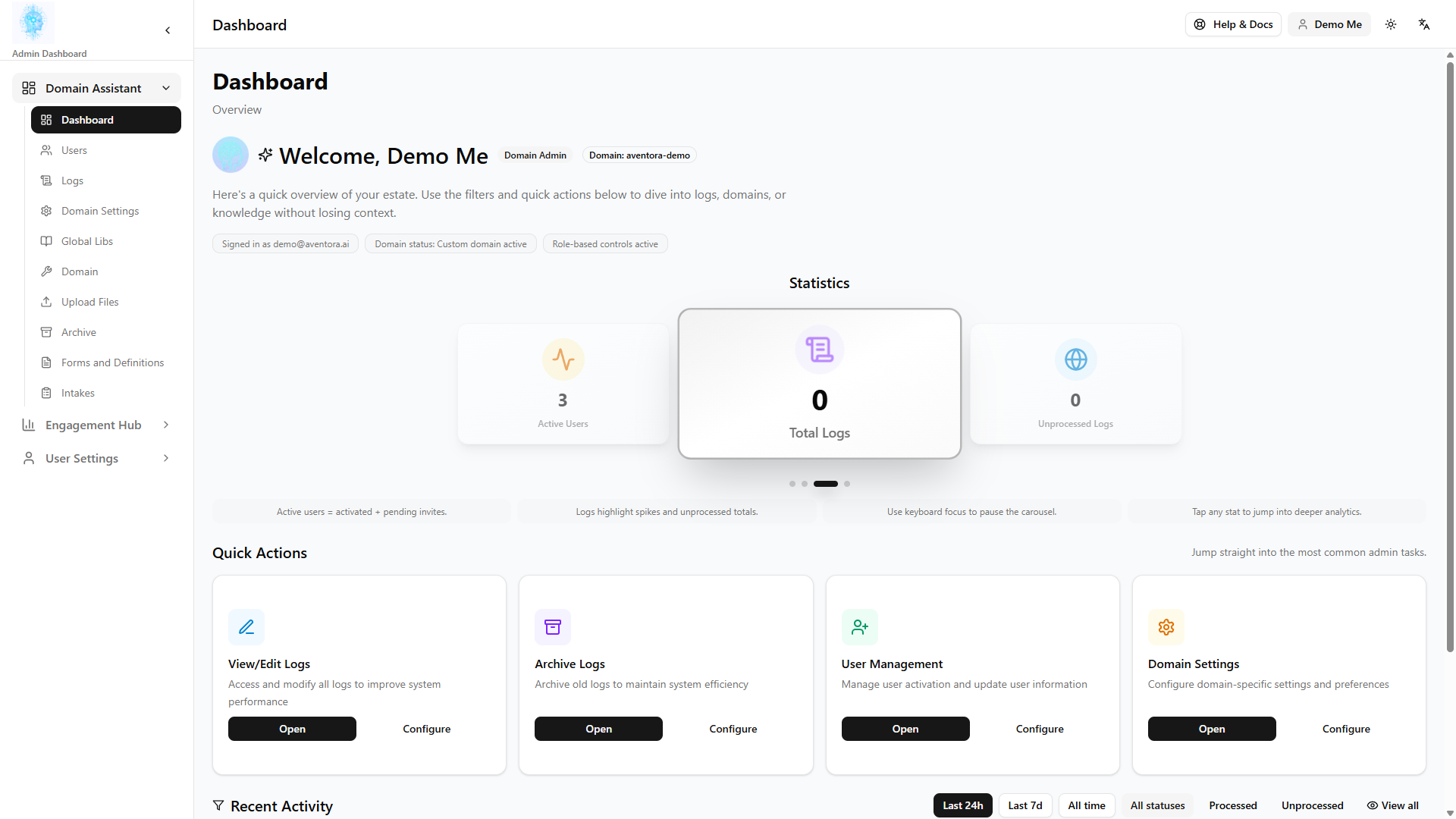
4.2 Dashboard
Type: Operation | Audience: Domain admin
Overview: The dashboard answers “is anyone using the bot?” and “is volume normal?”—a first stop before diving into individual chats.
Path: Domain Assistant → Dashboard
Overview of chatbot usage — conversation volume and activity. Start here before diving into logs or knowledge.
4.3 Conversation logs
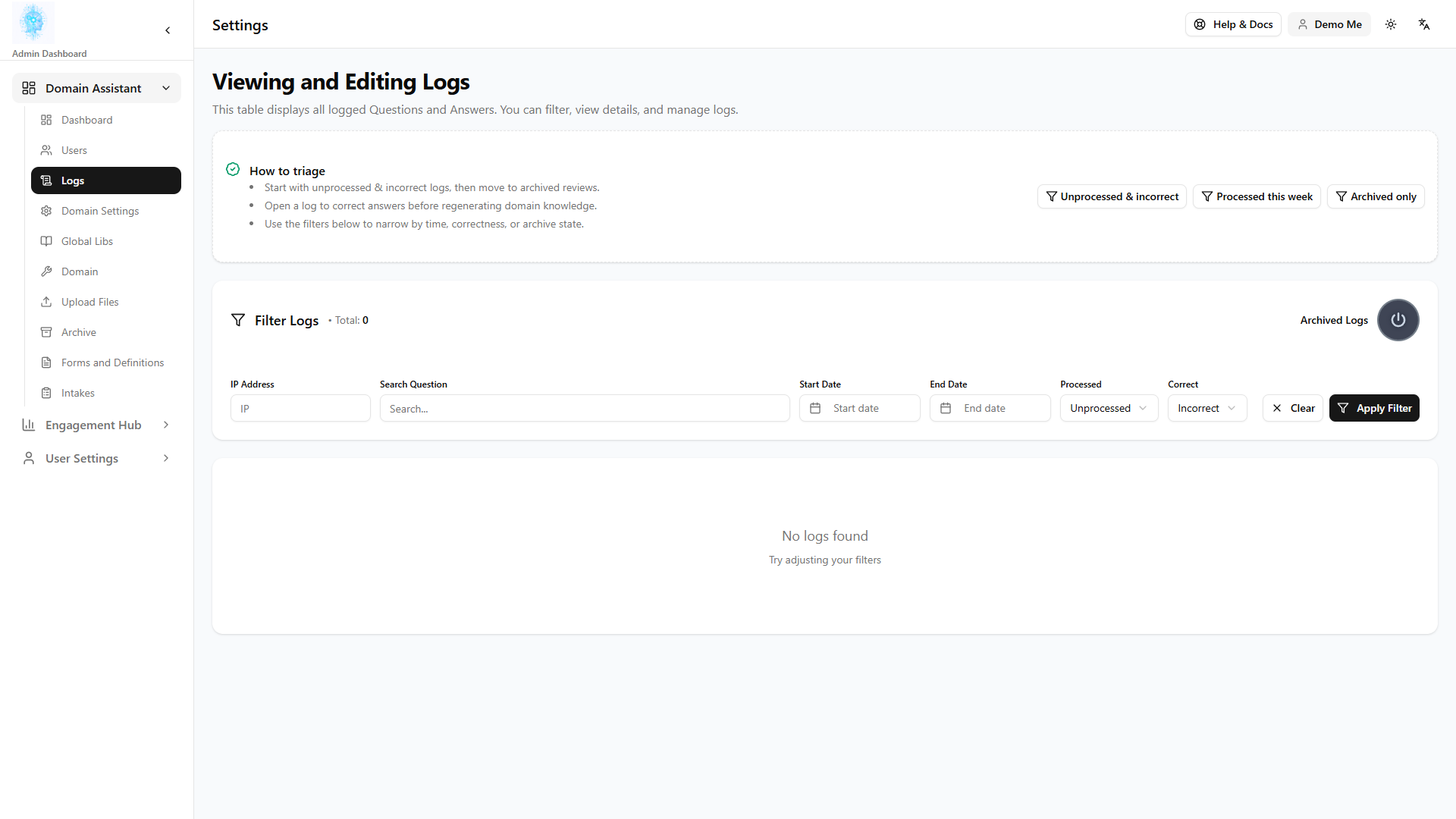
Type: Operation | Audience: Domain admin
Overview: Logs are where quality happens: spot wrong answers, train the business on what customers actually ask, and correct responses so the next visitor gets it right.
Path: Domain Assistant → Logs
- Read customer conversations.
- Correct answers the bot got wrong (improves future replies).
- Send conversations to Archive when done reviewing.
4.4 Archive
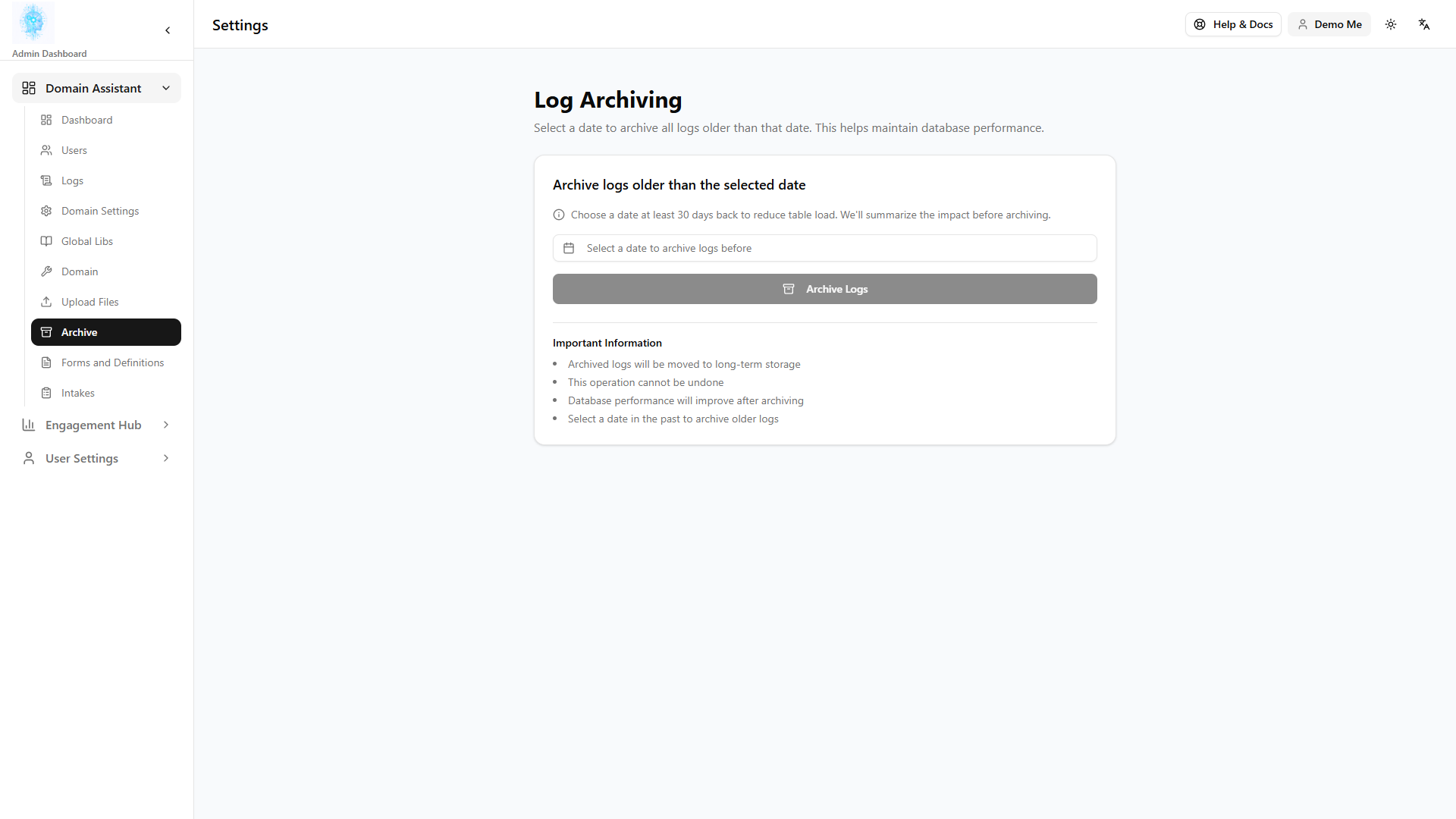
Type: Operation | Audience: Domain admin
Overview: Archive keeps reviewed conversations available for compliance or disputes without cluttering active log worklists.
Path: Domain Assistant → Archive
Browse archived conversations for compliance or quality review.
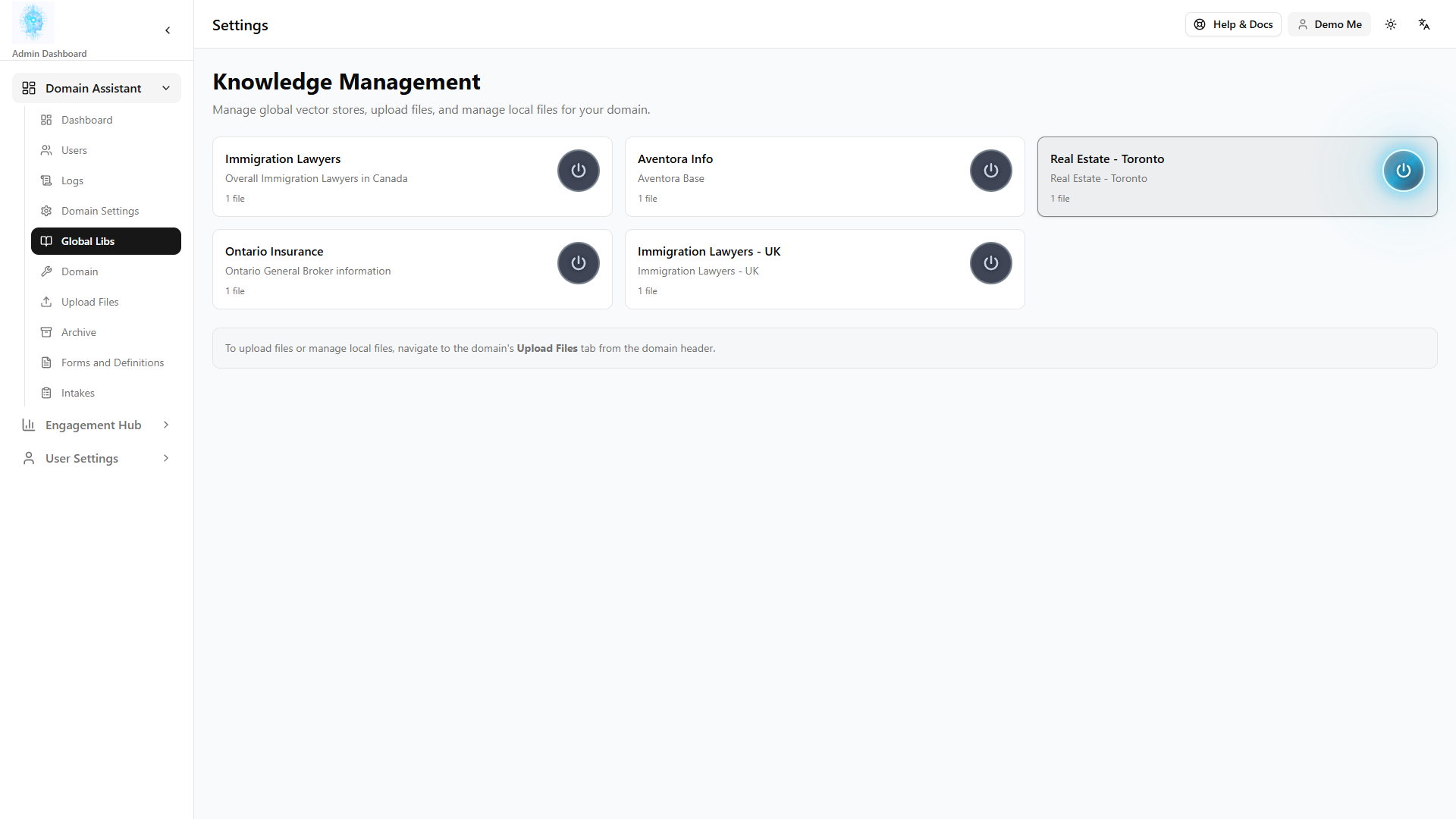
4.5 Knowledge (Global Libs)
Type: Administration | Audience: Domain admin
Overview: The knowledge base is the bot’s source of truth—policies, FAQs, product facts. Marketing, ops, or compliance should own updates when offerings change.
Path: Domain Assistant → Global Libs
Manage what the bot knows:
- Upload documents
- Import from web pages
- Edit text directly
- Regenerate or build the search index after changes so new content is used in answers
Keep content accurate and current; outdated knowledge causes wrong answers.
4.6 Domain content
Type: Administration | Audience: Domain admin
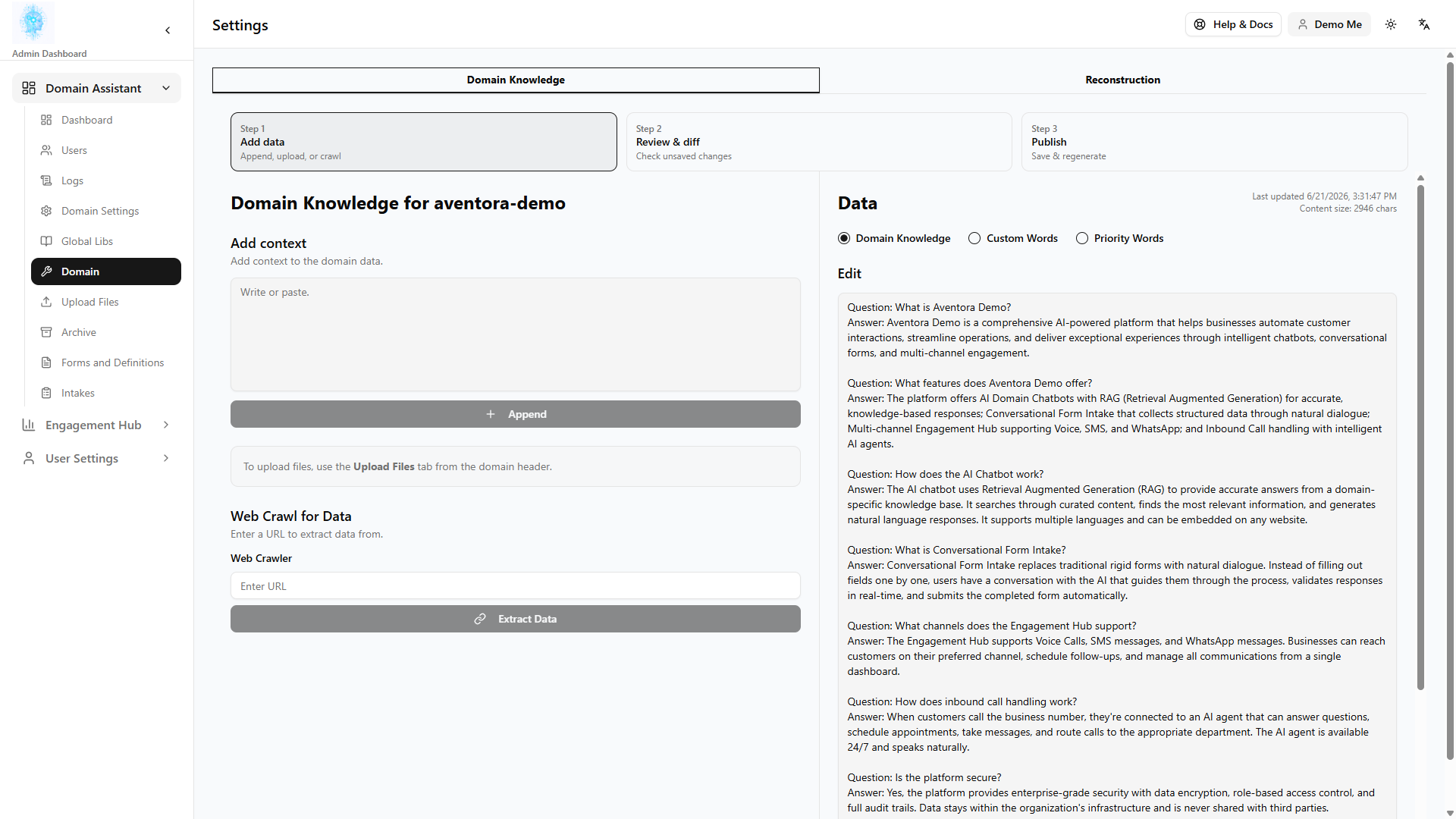
Overview: Domain-level text and corrections fine-tune tone and fix recurring misunderstandings (product names, legal phrases) without reloading entire documents.
Path: Domain Assistant → Domain
Edit domain-specific text, custom words, and priority corrections (often per language).
4.7 Team users (Admin accounts)
Type: Administration | Audience: Domain admin
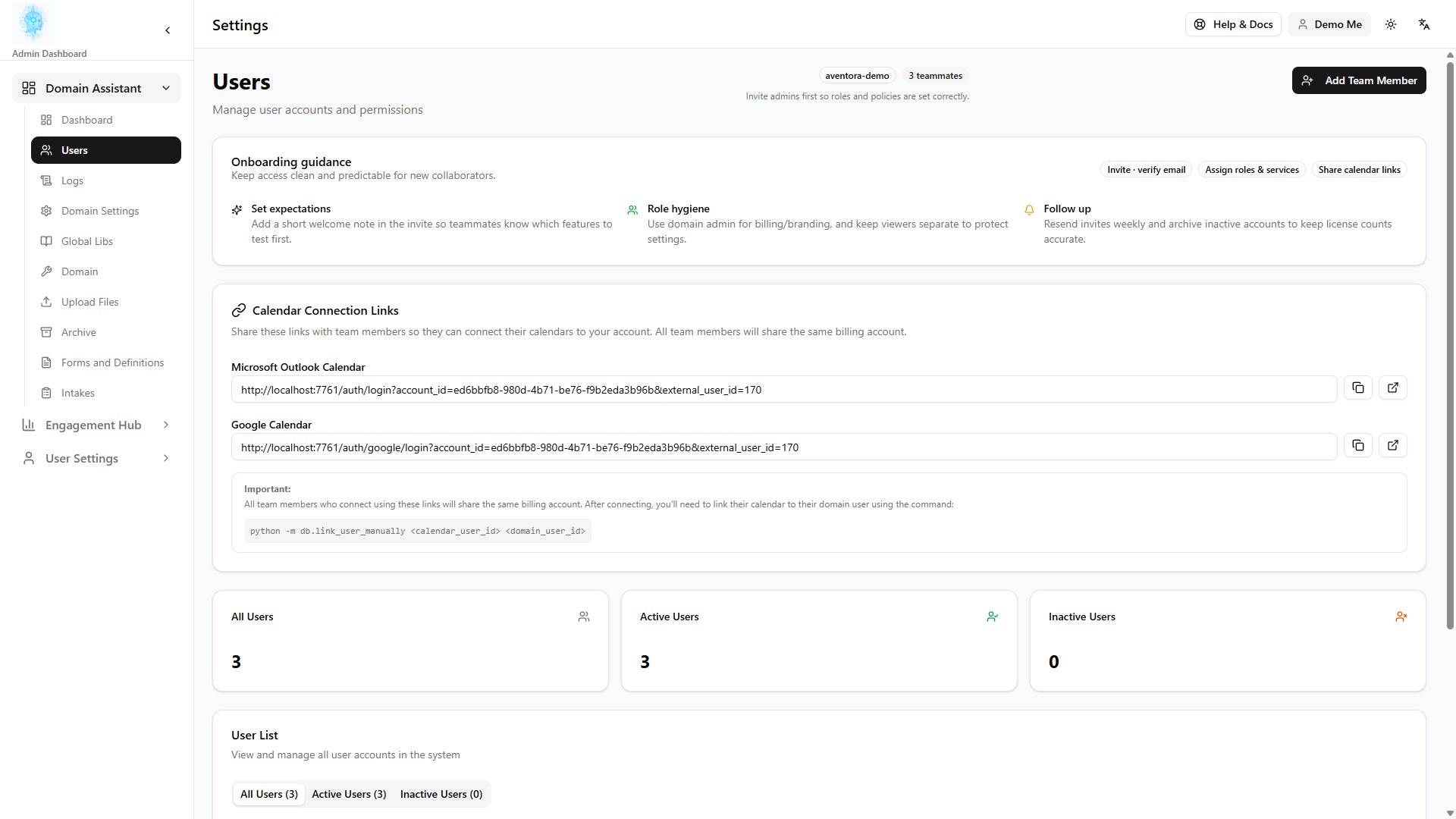
Overview: These users can log into Admin for this domain—separate from CRM workspace membership. Control who can change knowledge, view logs, or run Hub for the business.
Path: Domain Assistant → Users
Invite and manage administrator accounts for this domain. Users created here are admins for Admin access (not the same as CRM workspace members).
Toggle admin on a user to grant or remove full admin privileges. CRM team invites still happen inside Aventora CRM → Settings → Members.
4.8 Domain settings
Type: Administration | Audience: Domain admin
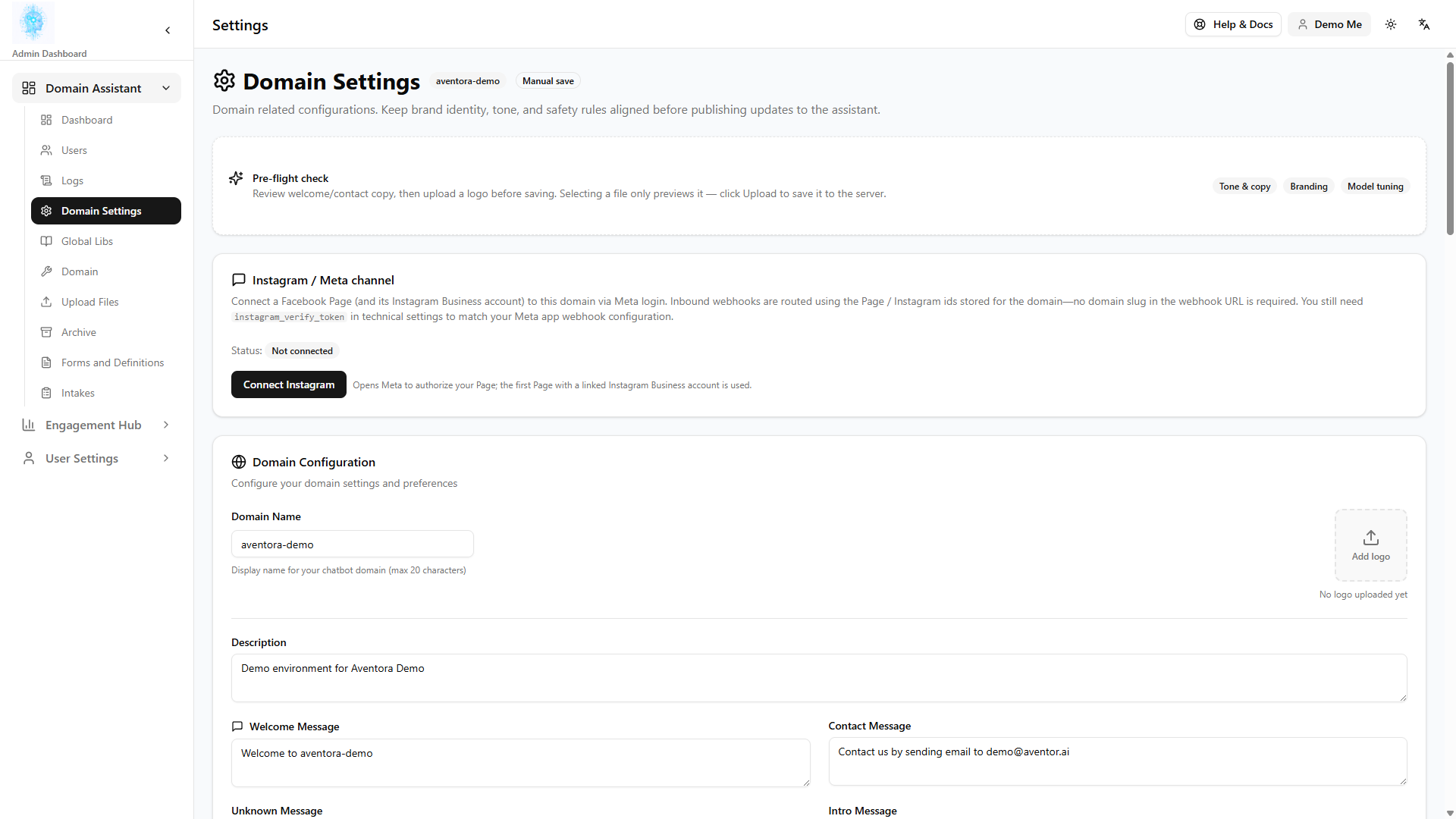
Overview: Branding and welcome behavior shape customer trust on the website; settings align the bot’s voice with your company.
Path: Domain Assistant → Domain Settings
Branding, welcome messages, behavior, and related chatbot configuration. Sensitive technical keys are usually managed during onboarding.
4.9 Upload files, forms, intakes
Type: Administration / Operation | Audience: Domain admin
Overview: When the business needs more than Q&A—applications, service requests, structured intakes—these areas define forms and track submissions.
| Path | Business purpose |
|---|---|
| Upload Files | Supporting files the domain or bot may reference |
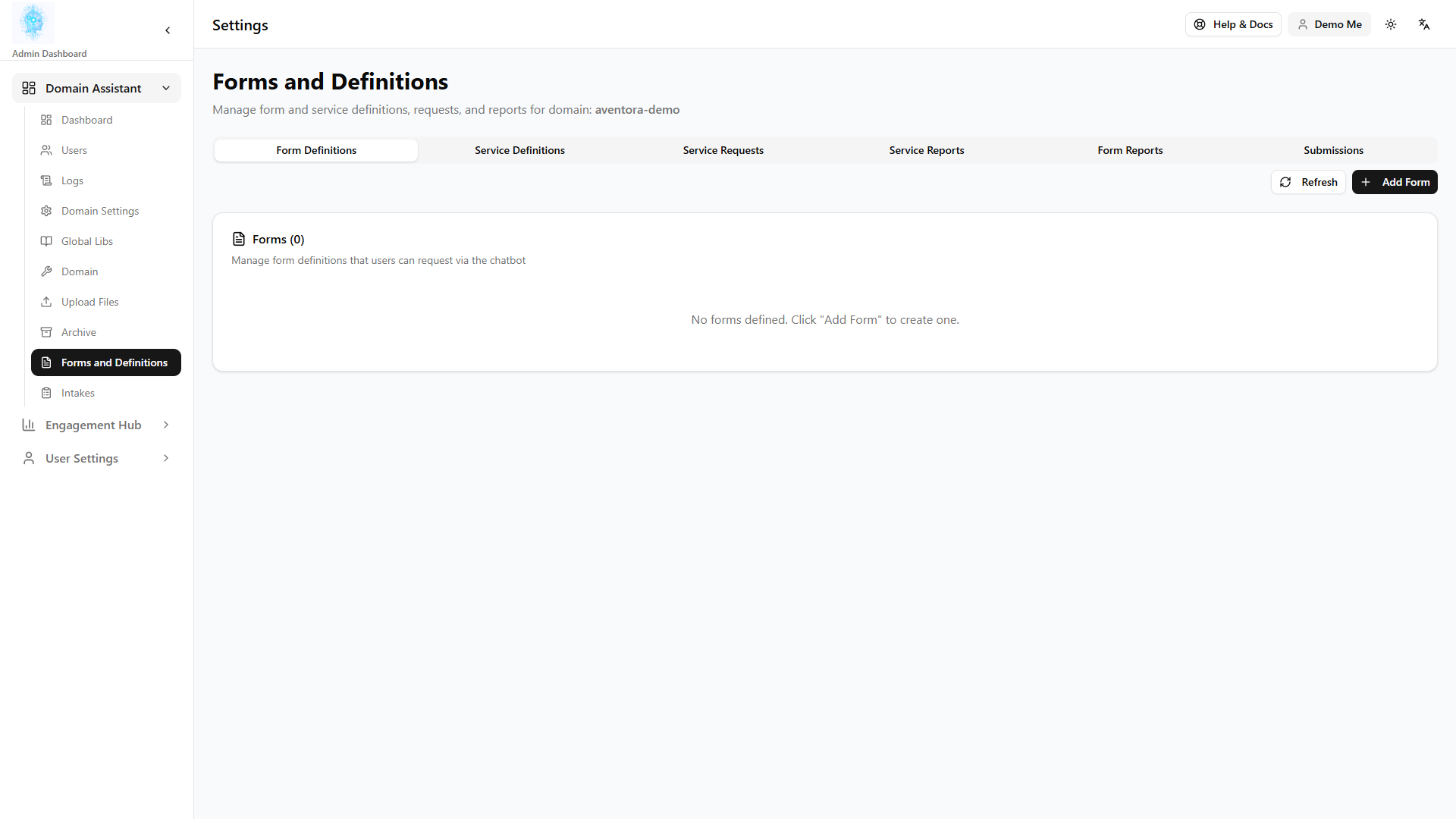
| Forms and Definitions | Build forms; Service Requests tab lists customer submissions |
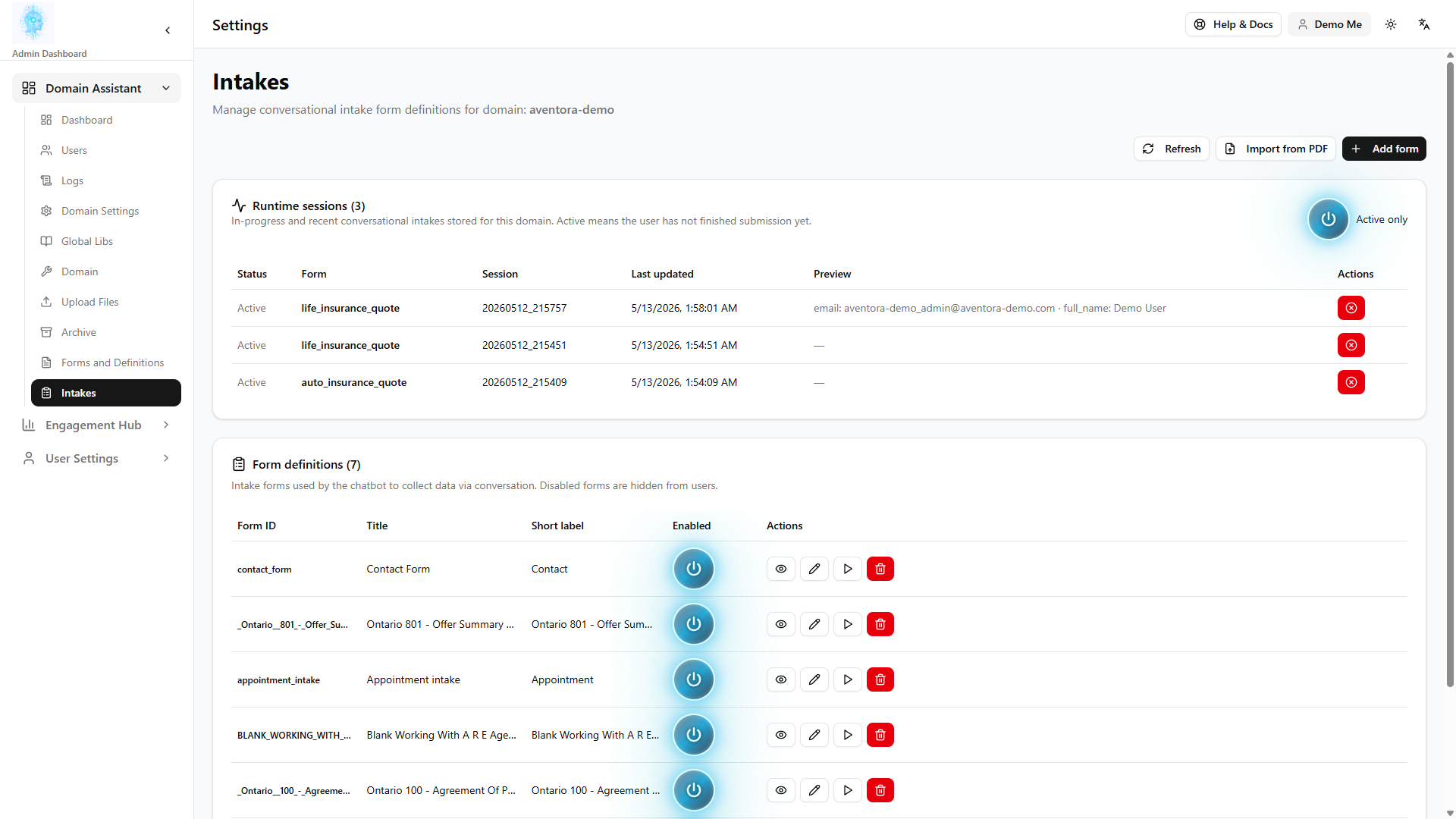
| Intakes | Track intake sessions and structured data collection |
Use these when your deployment includes forms or service workflows on the site.
Part 5 — Scenarios, glossary, and FAQ
Overview (business use case): Scenarios tie features together into stories your team already tells (“new lead,” “reminder blast,” “fix the bot”). Glossary and FAQ shorten onboarding for new hires.
5.1 Scenario playbooks
New lead to closed deal
Type: Operation
When to use: A named prospect entered the system and should move through qualification to revenue.
- Create Person (+ Company) in CRM.
- Log first touch as a note or task.
- Create Opportunity at early stage.
- Engage by Aventora (reminder or request meeting) or Single Call in Hub.
- Update stage after each meaningful conversation.
- Mark Won or Lost when done.
Appointment confirmation campaign
When to use: Many customers have appointments tomorrow and you need uniform reminders to cut no-shows.
- Prepare list with name, phone, email, booking reference in spreadsheet.
- Hub → Bulk Call — confirmation type, correct channel.
- Review Analysis for failures; retry or call manually.
- Confirm CRM deals/tasks reflect outcomes.
Handle live SMS chat
When to use: A customer replied to SMS and needs a human response, not another bot turn.
- Hub → Chat Center.
- Claim next waiting conversation.
- Resolve in thread; add note on CRM person when done.
Improve chatbot answers
When to use: Complaints or log review show repeated wrong answers on the website.
- Domain Assistant → Logs — find bad conversation.
- Correct response or update Global Libs.
- Regenerate index.
- Spot-check in logs after a day.
Paid ad campaign → live engagement
When to use: You are running Meta, Google, or other ads and want clicks to start conversations or appointment bookings—not just page views.
Full step-by-step: Meta Ad Management (Meta) or Ad Campaigns to Engagement (all platforms). Website embed: Chatbot Embedding. Simple CRM form + QR (no website): Campaign landing pages (Path D in the ad guide).
- Complete the pre-launch checklist (CRM Sync, calendar, credits, bot knowledge).
- Choose landing page + chat widget, Meta messaging, Email Pull, or CRM Campaign landing (URL + QR).
- Test one end-to-end path before increasing budget.
- Monitor Hub Dashboard, Domain Assistant Logs, and CRM Cockpit daily during the campaign.
CRM sync looks behind
When to use: Hub shows calls completed but CRM timelines are missing recent activity.
- Hub → Account Settings → CRM Sync (account owner).
- Open sync report.
- Run resync if offered; contact support if errors persist.
5.2 Glossary
| Term | Meaning |
|---|---|
| Person / contact | Individual record in CRM |
| Company | Organization linked to people and deals |
| Opportunity / deal | Tracked sale with pipeline stage |
| Engagement | Outbound or inbound AI-assisted call, message, or email thread |
| Campaign | Bulk outreach from a file upload |
| CRM Sync | Link between Hub and CRM so activity aligns with contacts |
| Account owner | Billing owner for Hub with full Account Settings |
| Delegate admin | Admin user on Hub without full settings access |
| Workspace admin | CRM role that manages members, roles, and apps |
| Chat Center | Live queue for staff to claim SMS/chat conversations |
5.3 FAQ
Where is my contact list?
In Aventora CRM → People. Admin does not list all contacts.
Why can’t I log into Admin?
Only accounts with administrator privilege can use Admin. CRM-only users use CRM only.
Why don’t I see Engage by Aventora on a person?
Workspace admin must enable the Aventora app in CRM Settings, and you need an initiator phone on your profile.
Why is Email layout empty or missing in CRM?
Your account owner must finish Outbound Email setup in Admin (SMTP tested and at least one email layout saved). Your CRM workspace must also be connected to Engagement Hub. If setup is incomplete, CRM may show a short message to contact your administrator.
What if I only use the CRM quick template and skip Email layout?
That is fine. The message is still sent using your instruction text. Without a layout, the email is simpler and does not use the branded HTML template from Admin.
Why don’t I see Agents in Hub?
Agents require CRM Sync set to Aventora CRM with a valid connection. Ask the account owner.
Why can’t I change CRM Sync or telephony settings?
Those tabs are for the Engagement Hub account owner, not delegate admins.
What is the difference between Inbound Calls page and Inbound in Account Settings?
Inbound Calls is a history list of calls received. Account Settings → Inbound is where the owner configures numbers, routing, and caller options.
Does Domain Assistant “Users” add people to CRM?
No. It adds Admin users for chatbot and Hub. CRM invites are in CRM → Settings → Members.
Where is help inside CRM?
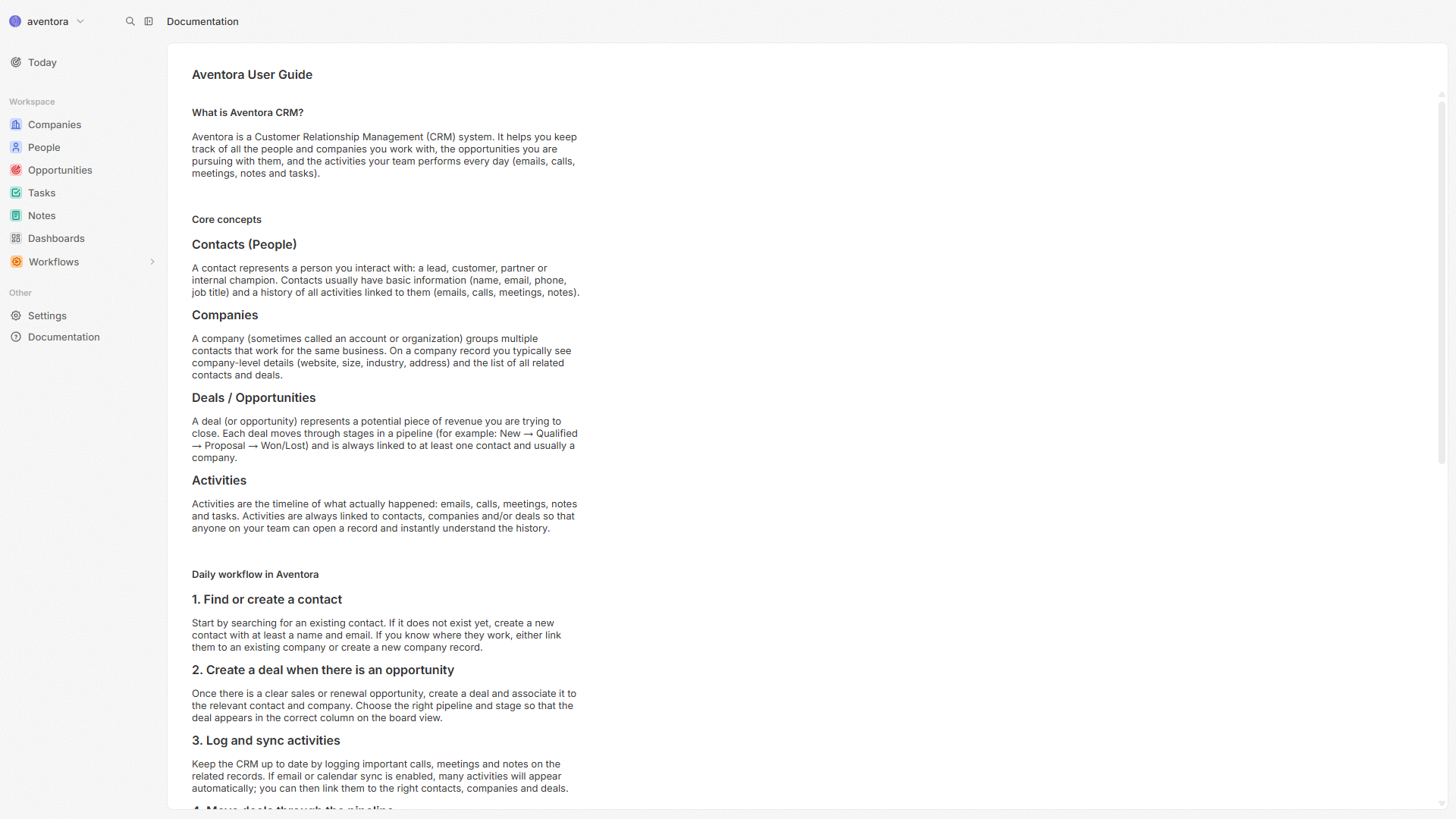
Open CRM → Settings → Documentation for a short in-product guide. This manual is the full reference for CRM and Admin together.
Changelog
| Date | Change |
|---|---|
| 2026-09-25 | Hub International and Simple Engagement Hub include Questionnaire (/phone/after-hours) in the home cards and sidebar. |
| 2026-09-17 | Email replies: Informational email uses the same Reply-To mailbox as other types. If the customer replies, Hub continues the conversation (same pattern as informational SMS). |
| 2026-09-16 | Email booking: Hub offers remaining times from now, not morning slots that have already passed. If a time cannot be booked, the same email includes the next remaining times rather than asking the customer to wait. After Hub offers times, “book that time” completes the calendar booking. |
| 2026-09-16 | Email replies: Appointment-booking email looks up the next available times when the customer asks. Sign-off uses your organization name. System email skips a broken logo box and includes a plain-text copy to reduce Gmail Promotions. |
| 2026-09-16 | Email subject: If you omit the subject on an email send, Hub writes one from the engagement instruction and type. Header/footer branding is unchanged. |
| 2026-09-16 | Email tab: System email uses optional engagement inbound IMAP, otherwise platform SES inbound receiving, otherwise SysInbound. |
| 2026-09-15 | Engage Instruction: Wrap the whole message in [...] to send as written; {name} fills the first name. See How to write Instructions. |
| 2026-08-13 | Aventora Calendar: Users with no saved hours get Monday–Friday 9:00 AM–5:00 PM; booking offers the first remaining slot after the current local time. |
| 2026-08-12 | Engagement Hub → Analysis → Call Details: Notifications column matches the Notifications report (who was notified for this call), including email-pull engagements. |
| 2026-08-12 | Engagement Hub → Analysis → Call Details: Call Information includes a Notifications column (who was notified, rule/event, and when). |
| 2026-08-12 | Engagement Hub → Analysis → Reports → Notifications: stacked outcomes, round-robin recipient estimate for older fires, and cancellable non-blocking load. |
| 2026-08-12 | Engagement Hub → Analysis → Reports → Notifications: missing engagement outcome shows N/A instead of Unknown. |
| 2026-08-12 | Engagement Hub → Analysis → Reports → Notifications: report now includes historical alert fires from the notification ledger (same “fired” source as call details). |
| 2026-08-12 | Engagement Hub → Analysis → Reports → Notifications: historical alert fires now appear after Hub restart (backfill from the notification ledger). |
| 2026-08-12 | Engagement Hub → Analysis → Reports: documented the Notifications report (per-recipient delivery status and triggering engagement outcome). |